Manage driver app notifications
What you get notified about in the driver app, and how to change it.
Tap the notification bell on the home screen to open your inbox.
Notifications are grouped into Today, Yesterday, and Earlier. Tap one to mark it read and open what it's about.
To change what you get notified about, go to Settings → Notifications.
What you'll see
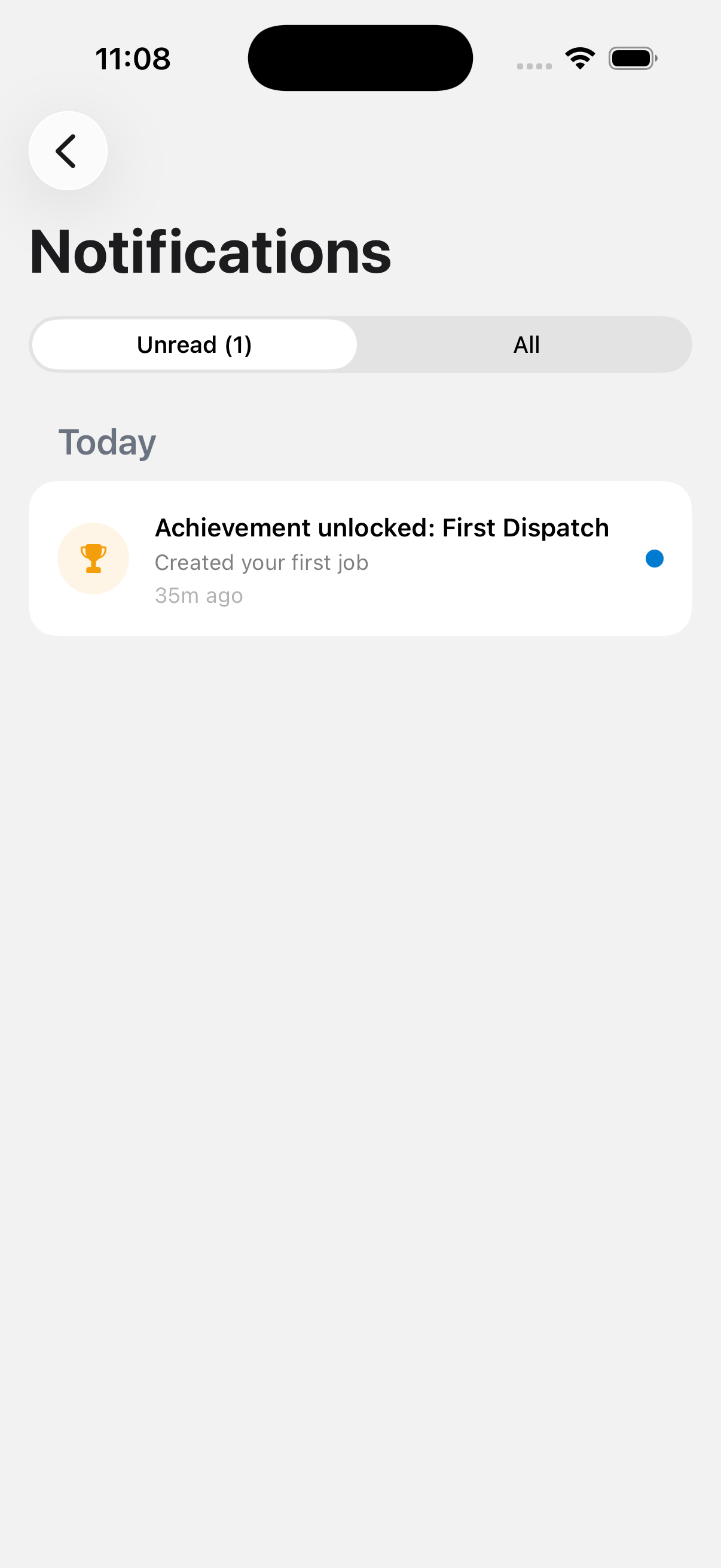
In your inbox, you can mark individual notifications as read or unread, mark all as read, or clear everything. Tapping a notification takes you to the right screen: job assignments, schedule changes, and cancellations open My Route; route re-optimizations also open My Route; truck assignment changes open Home; and earning an achievement opens Ranks.
In Settings → Notifications, each category has its own screen with a toggle per event. Any toggle you change is marked Custom. Use Edit to change multiple at once, Done when you're finished, or Reset to Defaults to undo your changes.
The first time you set up the app, DropHaul asks for notification permission with a "Stay in the Loop" screen covering job assignments, schedule reminders, team activity, and achievements. If you tap Enable Notifications and later deny the system prompt, DropHaul tells you notifications were denied and offers Open Settings to turn them on, or you can continue without them.
If something's not right
- I'm not getting notified about a job: check Notifications not arriving.
- I denied permission by mistake: open Settings → Notifications on your phone (not in the app) and turn notifications back on for DropHaul.