Find your way around the driver home screen
The dashboard drivers see when they open the DropHaul app.
Open the DropHaul app. Your home screen loads first.
Tap a Quick Action to jump straight into a common task, or tap your rank card to see your progress.
What you'll see
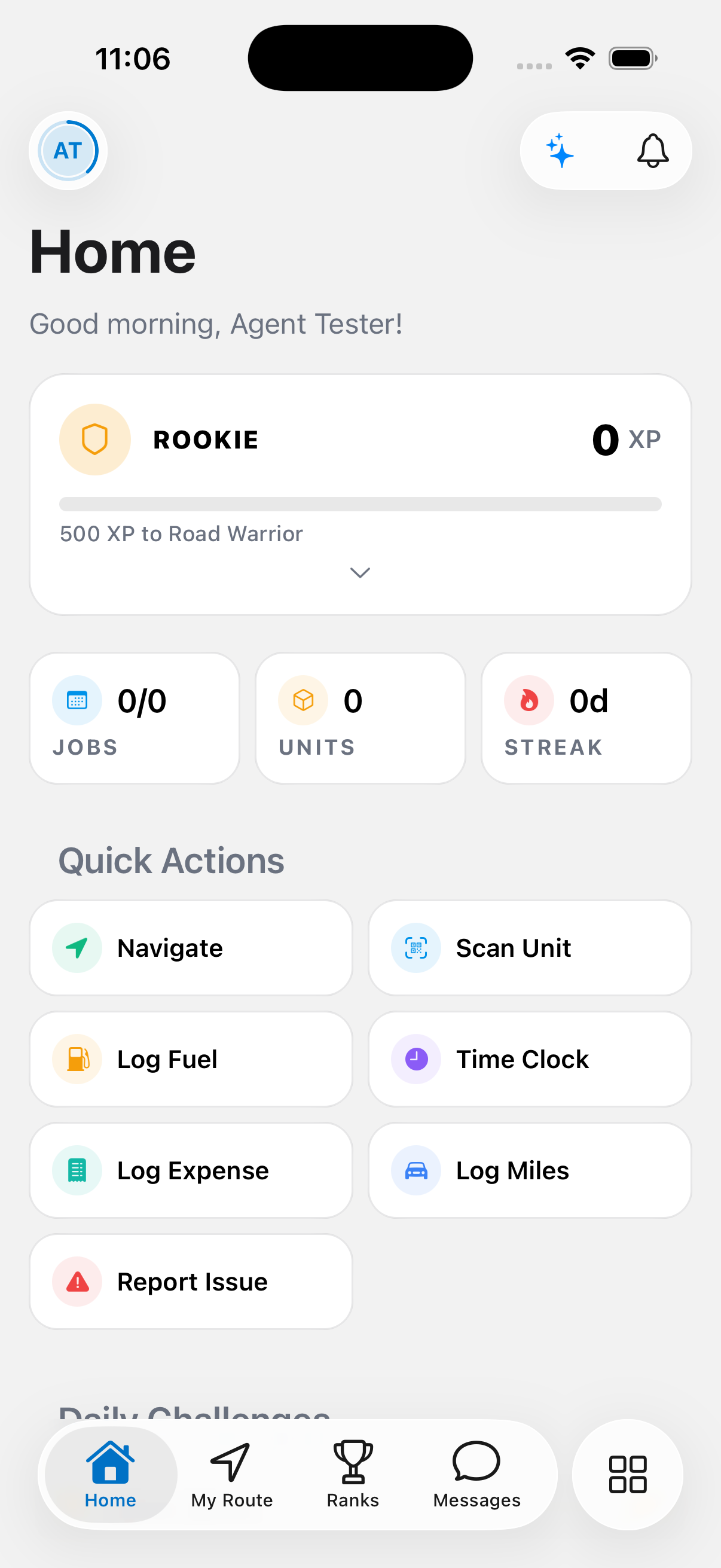
At the top, a profile button on the left and a notification bell on the right, next to a ring that fills in as you finish onboarding.
Below that, your rank card shows your rank name, XP, and progress to the next rank, with chips for Streak, Stops, On-Time, and Rank. Tap the badges row to open Badges and ranks.
A stats row shows Jobs (completed of total for today), Units, and your current Streak in days.
Quick Actions give you one-tap shortcuts to Navigate (opens today's route), Scan Unit, Log Fuel, Time Clock, Log Expense, Log Miles, and Report Issue. Report Issue needs an active job. If you don't have one, DropHaul tells you to navigate to a stop first.
A Daily Challenges card lists a few goals for the day with a progress bar and an XP reward for each one. Tap the help icon for details on how they work.
At the bottom, an Active Route pill shows your next stop, how many units are involved, and how many stops you've completed out of your total for the day. Once you finish every stop, it tells you so and to check back later for new assignments.
If something's not right
- Report Issue does nothing: you need an active job first. Open Today's route and start a stop.
- My stats look wrong: stats reset each day and only count stops completed while online. See Work offline.