Complete a stop
Navigate to a site, add notes, report issues, and mark a stop done.
Before you start
You need an internet connection to complete a stop. Everything else on this screen, notes, photos, and issue reports, can be done offline and will sync later. See Work offline.
From Today's route, tap the stop you're at.
Tap Navigate to Site to open directions in Apple Maps or Google Maps.
Tap Add Note to leave a note for the driver or dispatcher about this stop, if needed.
If something's wrong at the site, tap Report Issue, describe what's wrong, and tap Report. The dispatcher is notified.
When the work is done, tap Complete Stop (it shows Complete N Jobs instead if the stop covers more than one job).
What you'll see
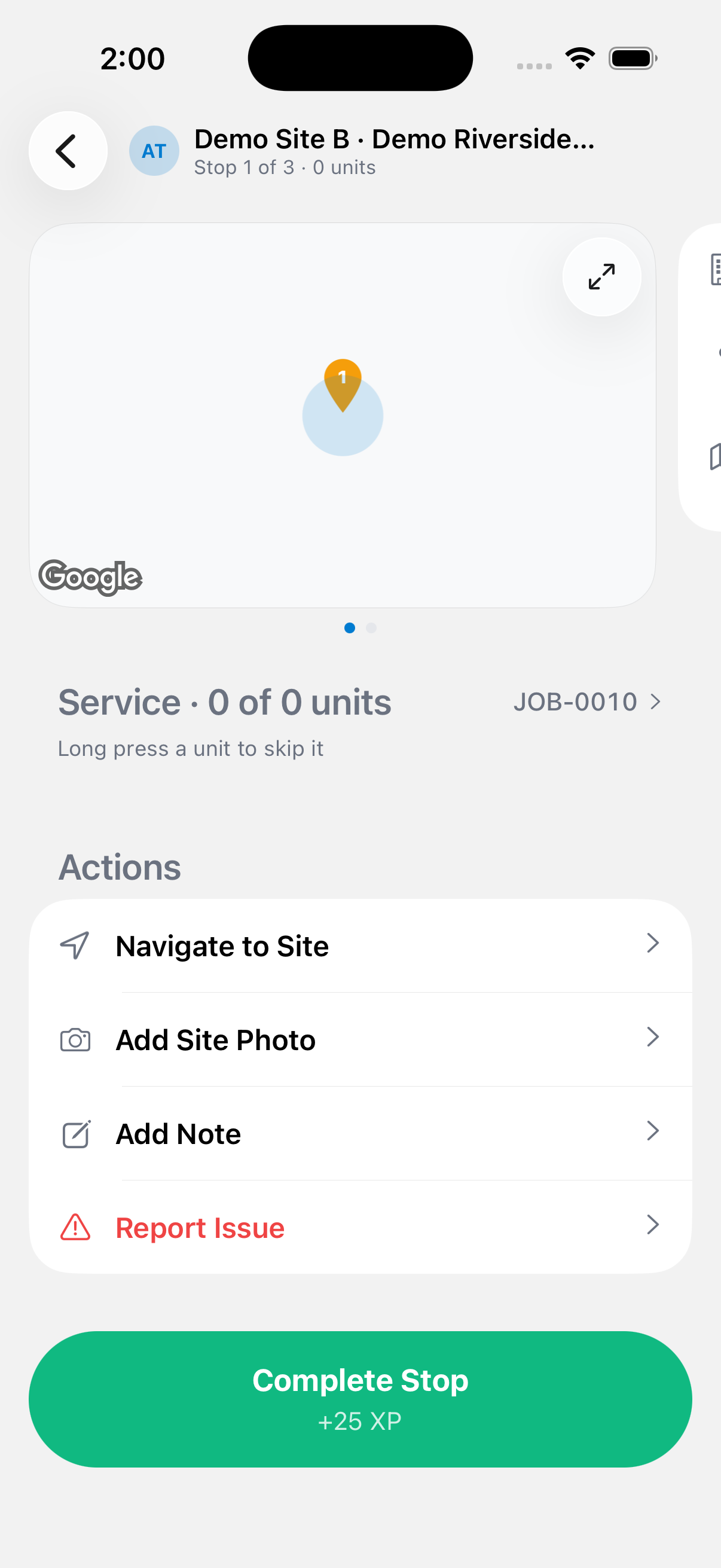
The Complete Stop button shows a subtext with the XP you'll earn plus any pending or skipped units. If any units at the stop are still pending, DropHaul asks "Complete with pending units?" and you'll need to tap Complete Anyway to continue.
If you're an owner or dispatcher completing a stop on someone else's behalf, DropHaul asks you to confirm. If you're not the assigned driver and don't have that permission, it tells you only the assigned driver can complete the stop.
Completing the stop itself needs a connection. If you're offline, DropHaul tells you to connect to complete the stop, everything else on the screen still works and queues up to sync.
Completing a stop can't be undone from the app. Double-check notes and photos before you tap Complete Stop.
If something's not right
- Complete Stop won't work: you need a connection. Check Work offline for what still works without one.
- Only the assigned driver can complete this stop: ask an owner or dispatcher to complete it on your behalf, or reassign the job.
- A unit is stuck pending: you can still complete the stop with Complete Anyway, but check with dispatch if that unit needs follow-up.