See today's route
View your assigned stops for the day, in order.
From the home screen, tap Navigate in Quick Actions, or open the My Route tab.
The screen title shows the date you're viewing, for example "Monday, Sep 15". It starts on today's date. Use the date-jump icon in the toolbar to check a different day.
Tap a stop in the list to open it.
What you'll see
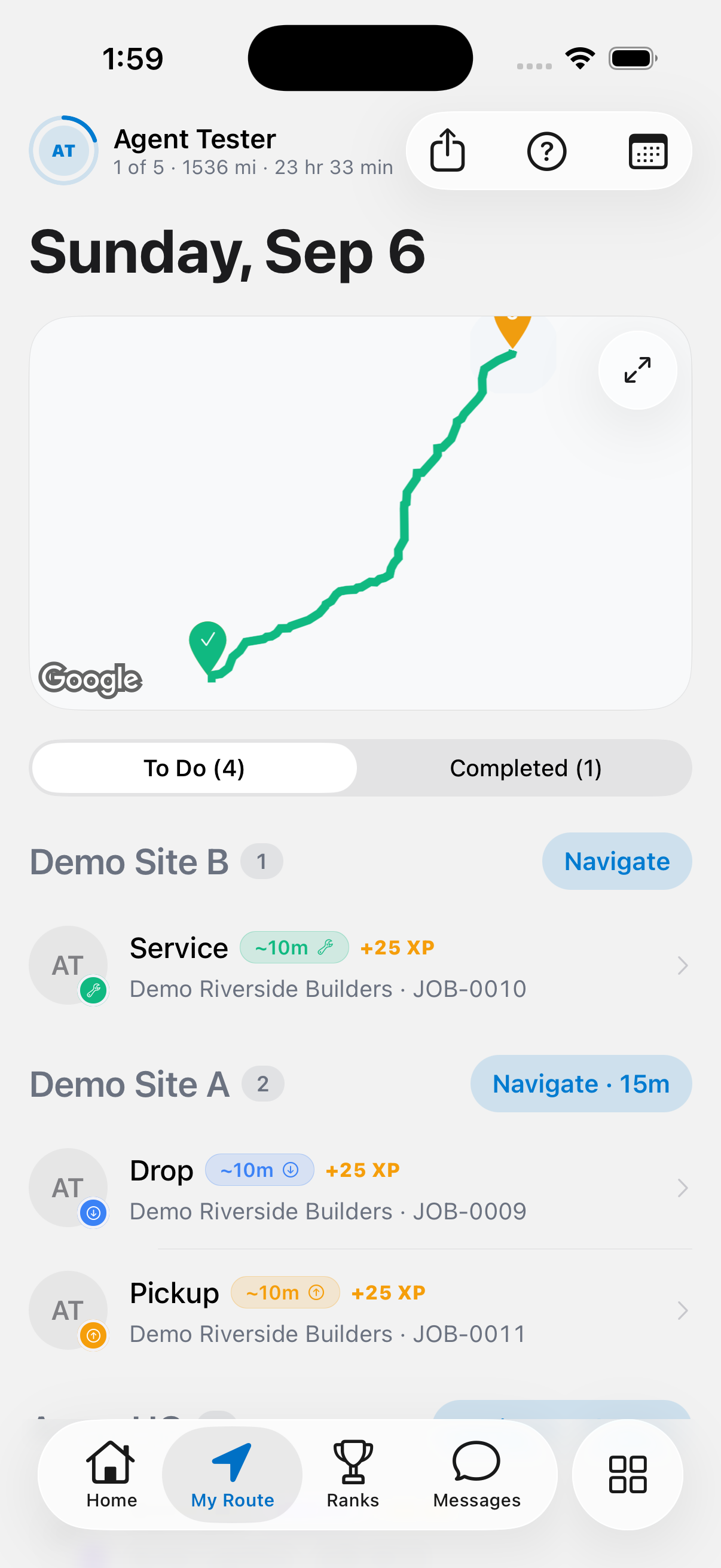
If your route includes a map preview, it appears above the stop list. Stops are already ordered for the shortest drive, so follow them top-to-bottom. If you have no stops assigned yet, the screen tells you assigned jobs will show up here in route order.
The toolbar also has a help icon, and a share icon that appears once you have a route to share. The help sheet covers optimized stop order, turn-by-turn navigation (tapping Navigate on your active stop opens Apple Maps or Google Maps), completing each stop, and how you earn XP: most orgs award 25 XP for each completed stop, plus bonus XP for photos, zero-issue jobs, and streaks. See Badges and ranks for orgs that use per-unit XP instead.
Tapping a stop opens the Service Stop screen, covered in Complete a stop.
If something's not right
- No stops scheduled: check with dispatch that jobs are assigned to you for today, or use the date-jump icon if you're looking at the wrong day.
- My route looks out of date: pull to refresh, or check Work offline if you have no signal.