Choose your notification preferences
Control what alerts you get and how, in-app, push, email, or SMS.
Go to Settings → Notifications in the sidebar.
Find the event you want to change, for example a new job assignment or an overdue invoice.
Toggle In-App, Push, Email, or SMS for that event.
What you'll see
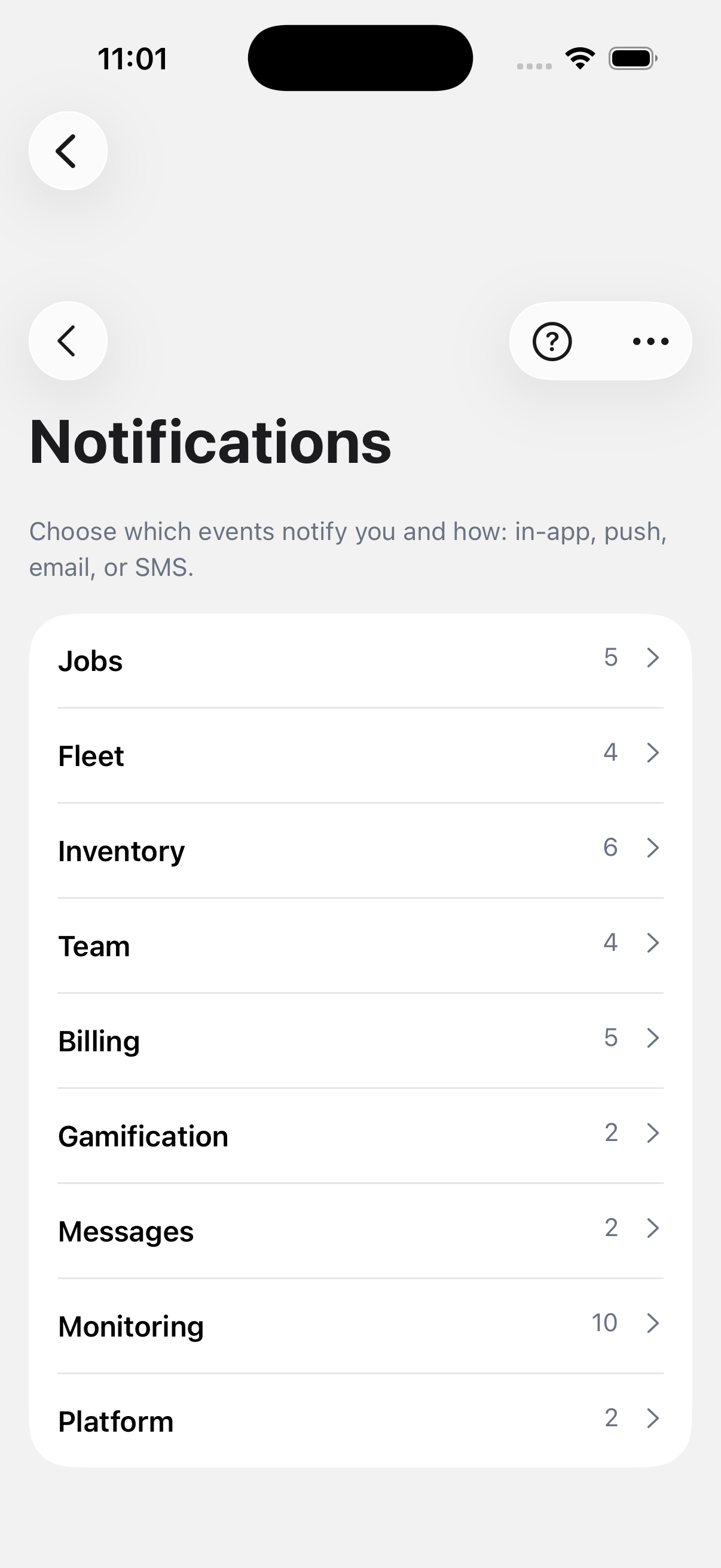
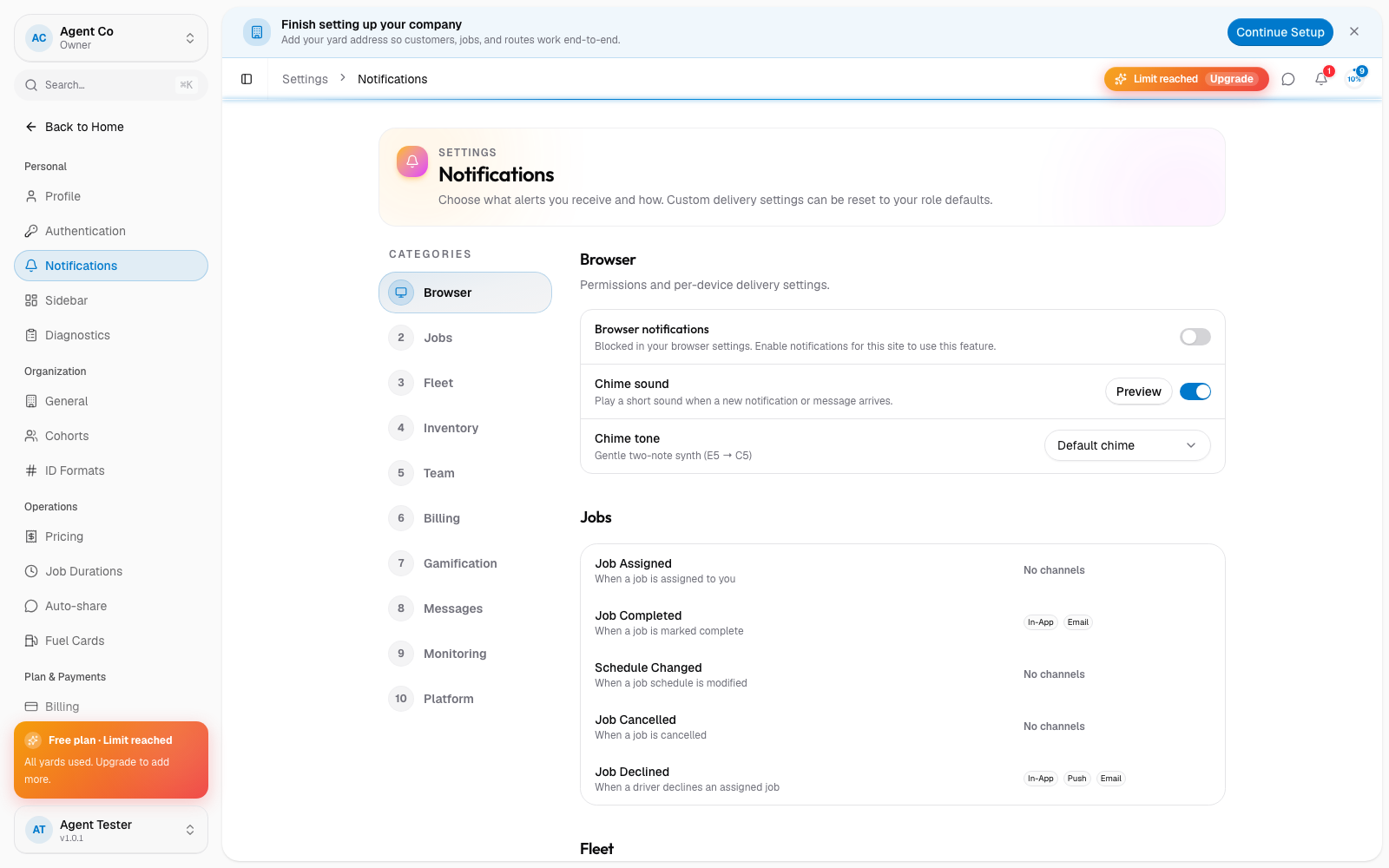
Each event starts with defaults based on your role. An Owner and a Driver see different defaults for the same event. Any channel you toggle overrides the default only for you: everyone else on your team keeps their own settings. You can reset a custom setting back to your role's default from the same screen.
Push notifications also need your browser or device's own permission. Check the Browser section on this page if pushes aren't coming through even though the toggle is on.
If something's not right
- I turned on a channel but nothing arrives: see Notifications not arriving.
- My settings don't match what I expect: check whether you've overridden the role default for that event, and reset it if needed.