Connect an integration
Link DropHaul to your payment processor, accounting software, CRM, and more.
Before you start
You need to be an Owner or Admin to connect or disconnect an integration.
Go to Settings → Integrations in the sidebar.
Find the integration under its category and select Connect.
For Stripe, QuickBooks, HubSpot, or Go High Level, follow that provider's sign-in steps, then confirm the connection in DropHaul. For every other integration (telematics, fuel cards, Checkr, and weather), fill in the provider's API credentials on the form DropHaul shows instead.
What you'll see
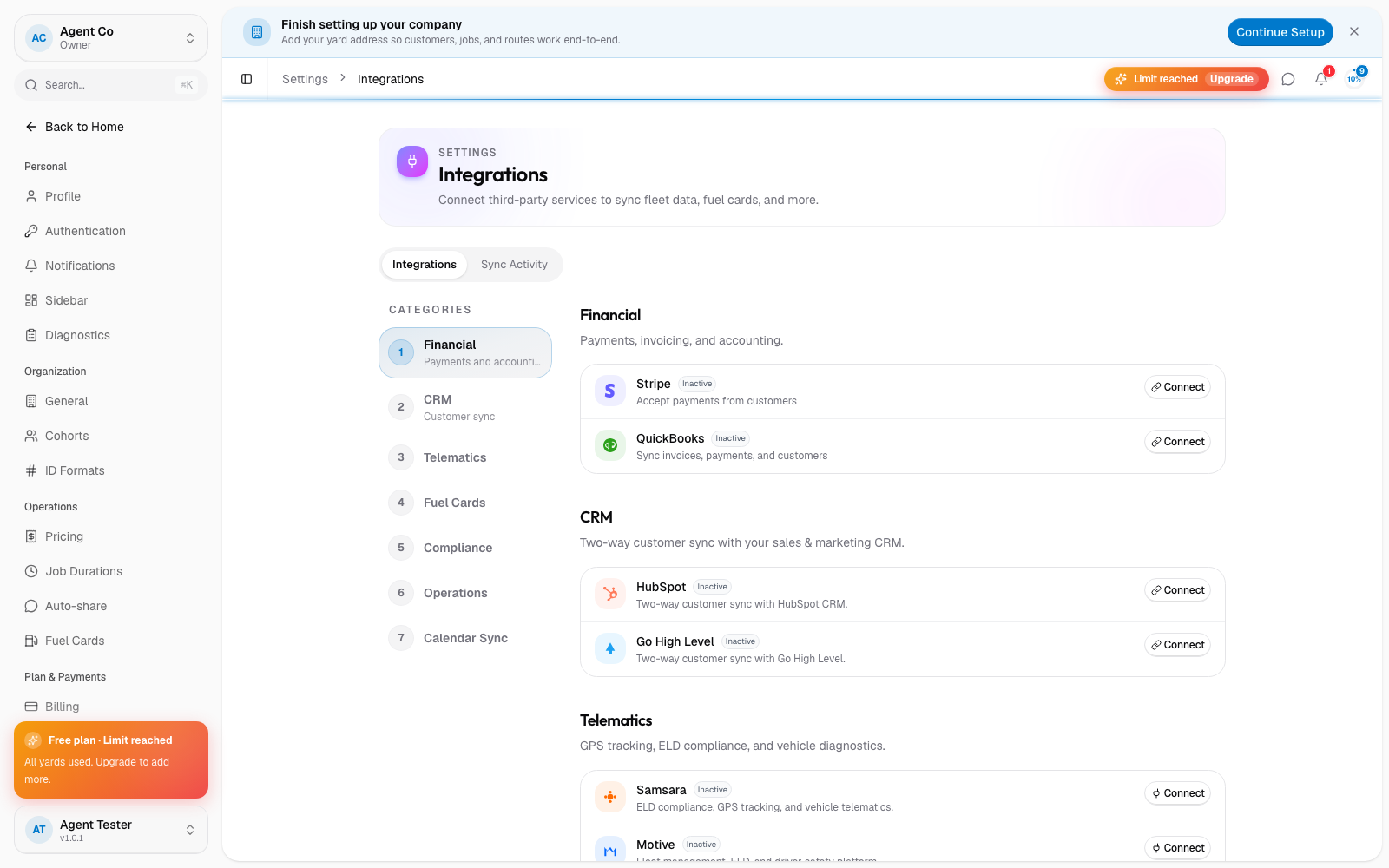
Integrations are grouped by category:
- Financial: Stripe (payments) and QuickBooks (accounting).
- CRM: HubSpot and Go High Level, two-way customer sync.
- Telematics: Samsara, Motive, Geotab, and Verizon Connect.
- Fuel cards: WEX and Fuelman.
- Compliance: Checkr.
- Operations: weather and IoT sensor data.
- Calendar sync.
Connected integrations show their status in the card. All connected integrations report to one shared Sync Activity tab at the top of the Integrations page, not a separate log per integration.
If something's not right
- I don't see Integrations in Settings: you need Owner or Admin access.
- A payment or invoice isn't showing up after connecting Stripe or QuickBooks: see Payments not showing correctly.