Manage sign-in and security
Review active sessions, turn on two-factor authentication, and add a passkey.
Go to Settings → Authentication in the sidebar.
Under Sessions, review where you're signed in and select Revoke on any session that isn't you.
Under Two-Factor Authentication, enter your current password and select Enable 2FA. Add the TOTP code DropHaul shows to your authenticator app, then enter the 6-digit code it generates and select Verify and enable.
Under Passkeys, select Add a passkey to sign in with your device's built-in security (Face ID, Touch ID, or a security key) instead of a password.
What you'll see
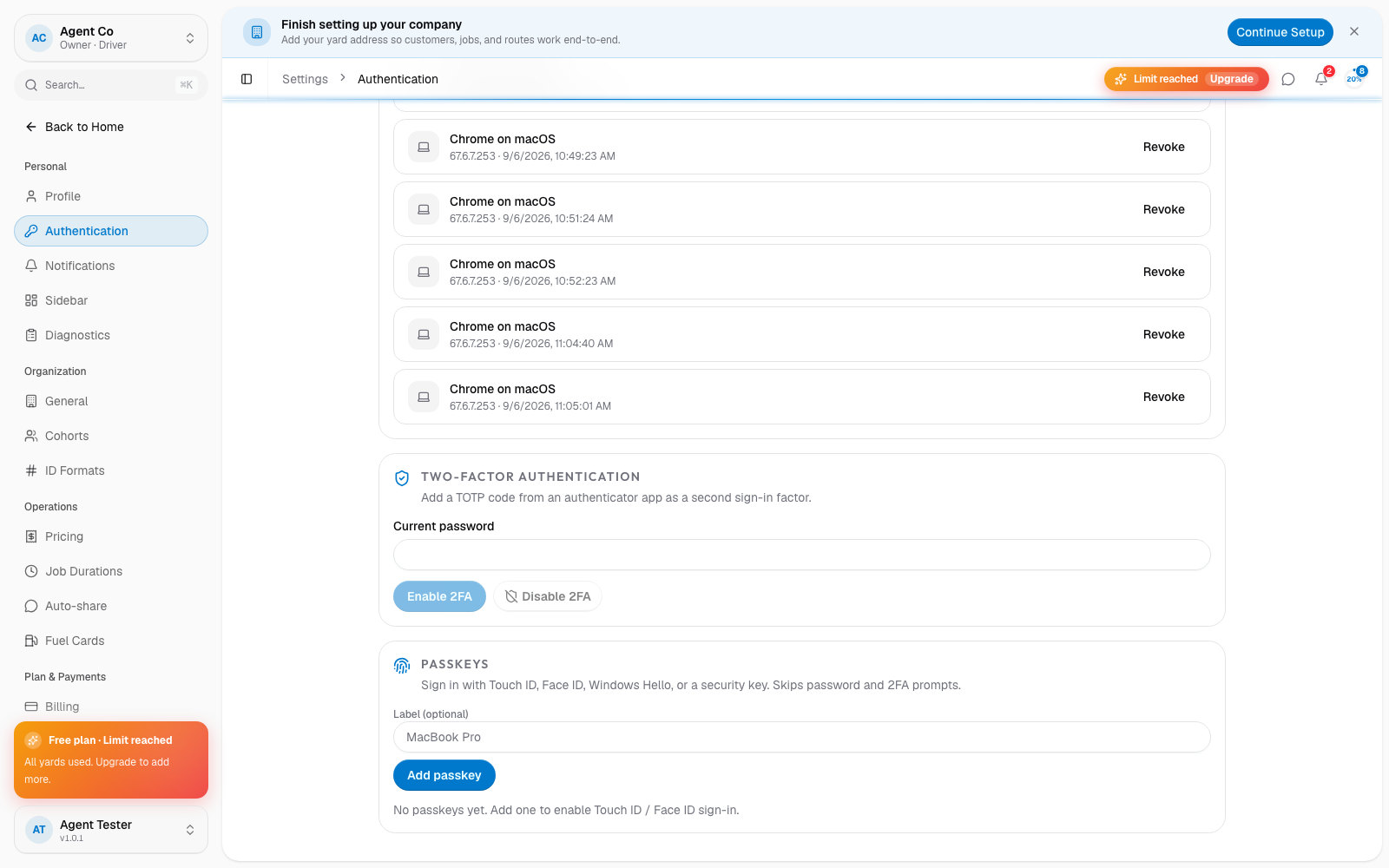
Once two-factor authentication is on, DropHaul asks for a code from your authenticator app after your password on every new sign-in. Passkeys let you skip the password step entirely on devices where you've added one.
Revoking a session signs that device out immediately. Only revoke a session you don't recognize, or one from a device you no longer use.
If something's not right
- I lost access to my authenticator app: see I can't sign in.
- A device I don't recognize is listed: revoke it right away, then change your password.