Run your first job
Create, assign, and complete your first job in DropHaul.
Before you start
You need at least one customer and site set up, and one driver on your team. See Invite your team and the customers guide if you haven't added those yet.
Go to Jobs in the sidebar, then select Add Job.
Pick a job type (Drop, Service, Pickup, or Relocate), then the customer and site. See Job types if you're not sure which to pick.
Set a scheduled date and time window, then select Create job.
Open the new job and select Assign driver to put it on someone's schedule. See Assign a job to a driver for the full walkthrough.
What you'll see
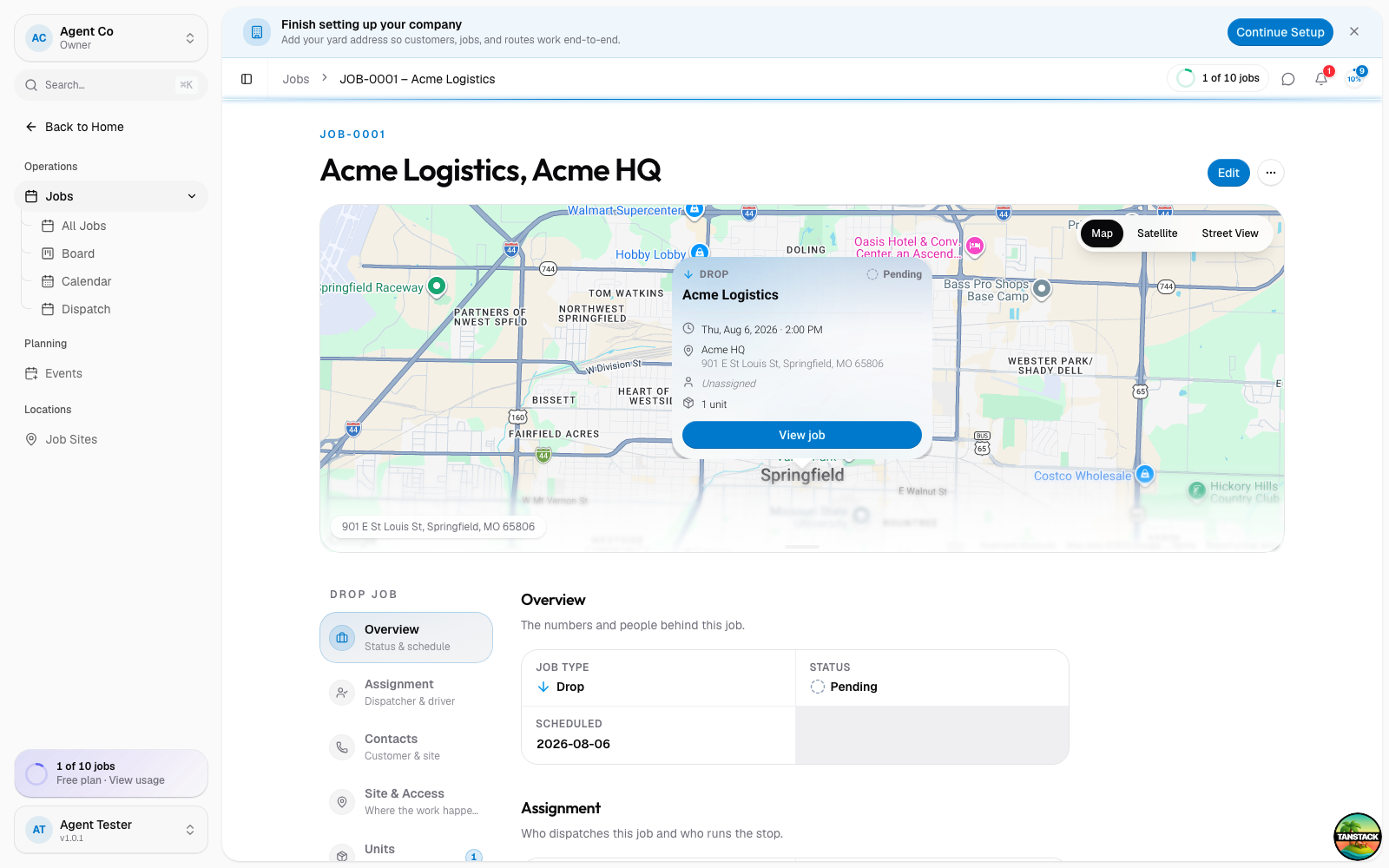
The job gets a display ID like JOB-0001 the moment it's created. Once a
driver is assigned, it moves from Pending to Assigned, and the driver
sees it on their phone. As the driver works the job, its status moves through
In Progress to Completed.
The Dispatch board is the fastest way to see every driver's day at a glance and assign jobs by dragging them onto a driver. See The dispatch board.
If something's not right
- Create job is disabled: a required field (job type, customer, or site) is still empty.
- No drivers to choose from: invite one from Team first, see Invite your team.