Assign a job to a driver
Put a job onto a driver's schedule from the dispatch board or the job itself.
Before you start
The job needs to exist first. See Create a job.
On the dispatch board's Dispatch view, drag the job from the Needs Attention panel, or from another driver's row, onto the driver's row.
DropHaul assigns the job to that driver as soon as you drop it. There's no confirmation dialog on this view.
You can also open the job directly and select Assign driver from its menu while it's still pending.
On the Board view, dropping a job onto a status column that needs a driver (Assigned, In Progress, or Completed) opens an Assign a driver dialog instead. Pick a driver and select Assign and move to confirm.
What you'll see
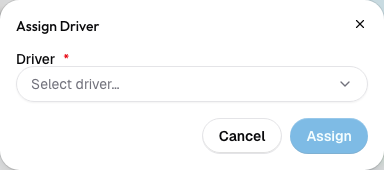
DropHaul shows a toast confirming the job was assigned to that driver, and the job moves from Pending to Assigned.
Every way of assigning a job (dragging it onto a driver's row, the Board view's dialog, or the job detail page's Assign driver menu) notifies the driver.
If something's not right
- No drivers to choose from: the empty state says so directly. Invite a driver from Settings → Team first. See Invite your team.
- Assign and move is disabled: on the Board view's dialog, this means no driver is selected yet.