Dispatch
The dispatch board
See every driver's day at a glance and move jobs onto their schedule.
Before you start
You need the owner, admin, or dispatcher role to open Dispatch. See Roles explained.
Go to Jobs in the sidebar, then select Dispatch. You can also reach it from the Dispatch button on the Overview page.
What you'll see
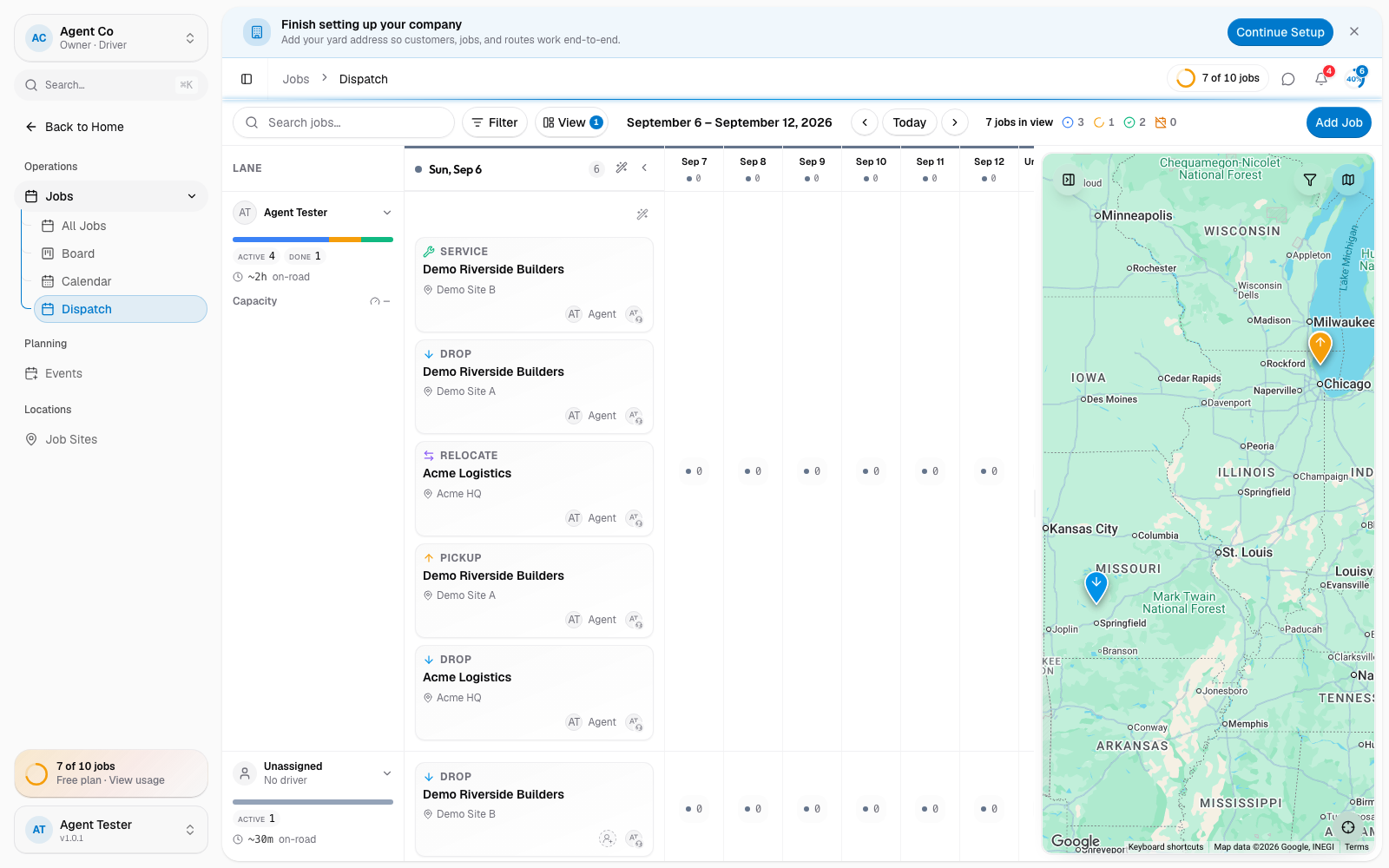
Dispatch lays the day out as a grid: one column per day, one row per driver. Jobs without a scheduled date sit in a Needs Attention panel at the side instead of a row, so nothing gets lost while you're still sorting out who's doing what.
This is a different view from the All Jobs, Board, and Calendar tabs on the main Jobs page:
- All Jobs: filter, sort, and bulk-edit jobs as a list.
- Board: track jobs by status (Pending, Assigned, In Progress, Completed, Cancelled) as columns.
- Calendar: see the load across dates, in day, week, month, or agenda view.
- Dispatch: see load across drivers for the day, and assign jobs by dragging them onto a row.
If something's not right
- A driver's row is missing: they may not be marked active, or don't have the driver role. Check Team.
- A job won't drop onto a row: completed and cancelled jobs can still be moved, but DropHaul asks you to confirm first so an accidental drag can't reopen finished work by mistake.