Invite your team
Bring dispatchers, drivers, and technicians into your DropHaul company.
Before you start
You need an active company. See Create your company if you haven't set one up yet.
If you're setting up a brand-new company, use the setup wizard's own Invite your dispatchers, drivers, and technicians step to add several people at once. Pick a role per person, then select Send Invite. The button label counts the invites you've entered, for example Send 2 Invites.
Adding someone later, or setting the wizard step aside for now? Go to Team → Members, enter their email under Invite a teammate, pick a role, and select Send invite. See Invite a teammate for the full walkthrough, including revoking a pending invite and fixing a wrong role.
What you'll see
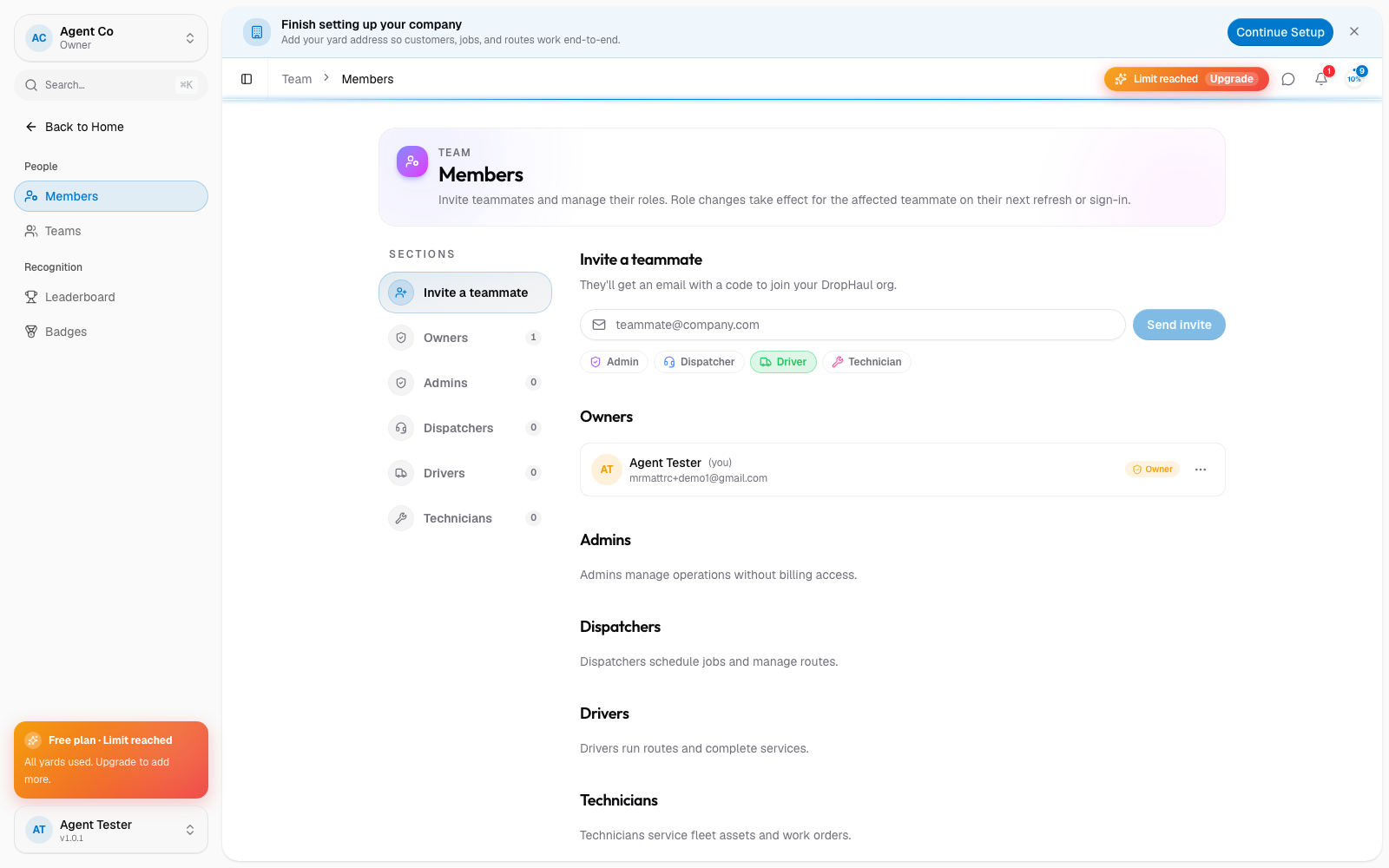
They get an email with a code to join your company. Until they accept, they show up under Pending invitations; once they accept, they appear in your team list under the role you gave them.
If something's not right
- Send Invite is disabled: every row needs a valid email and at least one role selected. Fix or remove the incomplete row.
- Skipped the invite step by mistake: you can still invite people any time from Team → Members.