Invite a teammate
Send an email invite and give a new teammate a role.
Before you start
You need to be an Owner or Admin to invite people.
Go to Team → Members in the sidebar.
Under Invite a teammate, type their email address.
Pick one or more roles for them, then select Send invite.
What you'll see
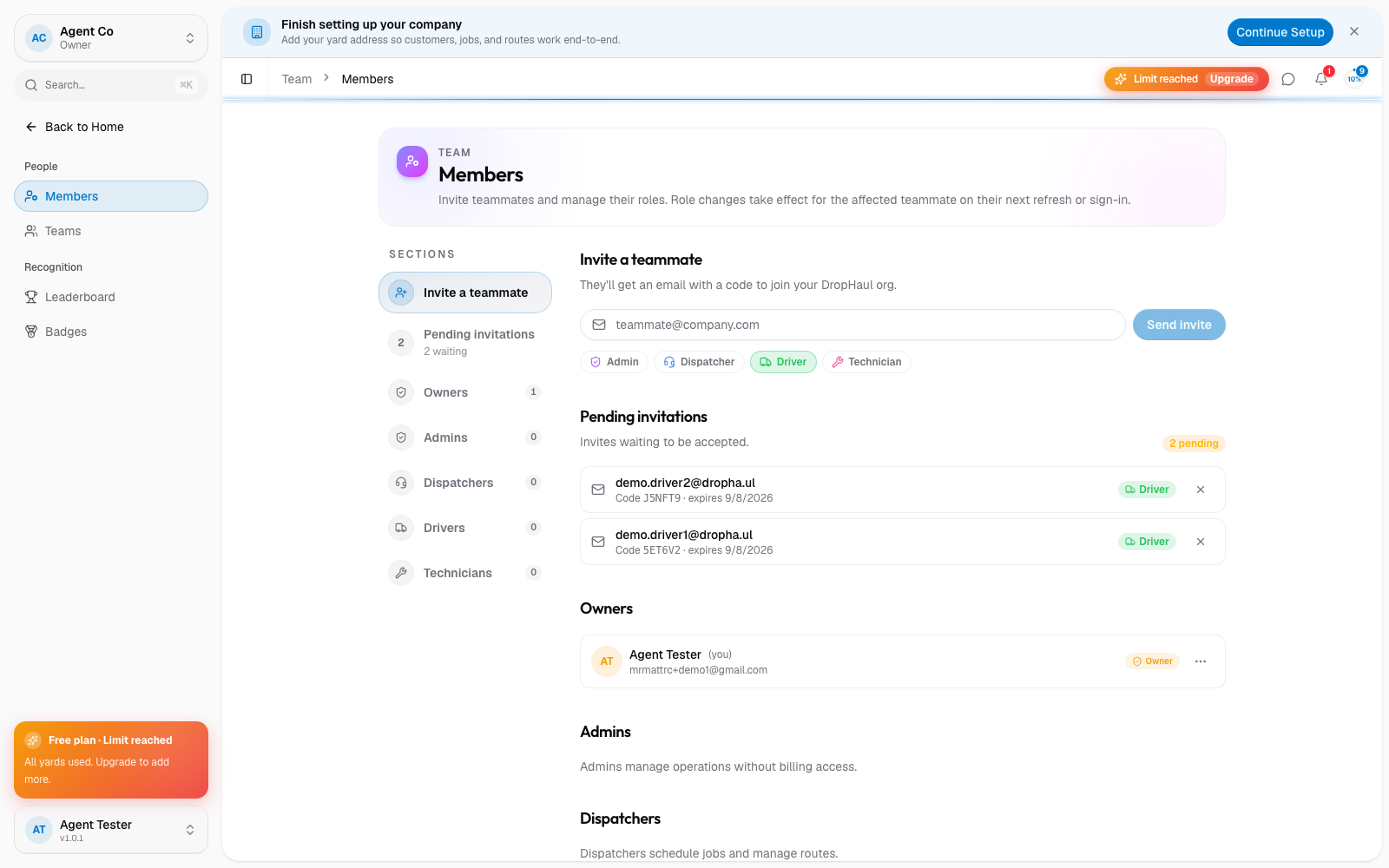
DropHaul sends them an email with a code to join your org. While they haven't accepted yet, they show up under Pending invitations with the number of invitations waiting. You can revoke a pending invite from there if you sent it to the wrong person.
Once they accept, they appear in the member list under the role you gave them. Role changes take effect for that teammate the next time they refresh the page or sign in.
The invite flow never offers the Owner role. Owners and Admins can invite Admins, Dispatchers, Drivers, and Technicians. Granting someone Owner access requires a DropHaul superadmin to promote them after they've joined, and it isn't available from Team → Members.
If something's not right
- Send invite is disabled: enter an email address of at least 3 characters. DropHaul defaults to Driver, and you need at least one role picked before the invite sends.
- They never got the email: see I didn't get an invite.
- Wrong role after accepting: open Team → Members, find them under their current role's section, and change their role there.