Jobs
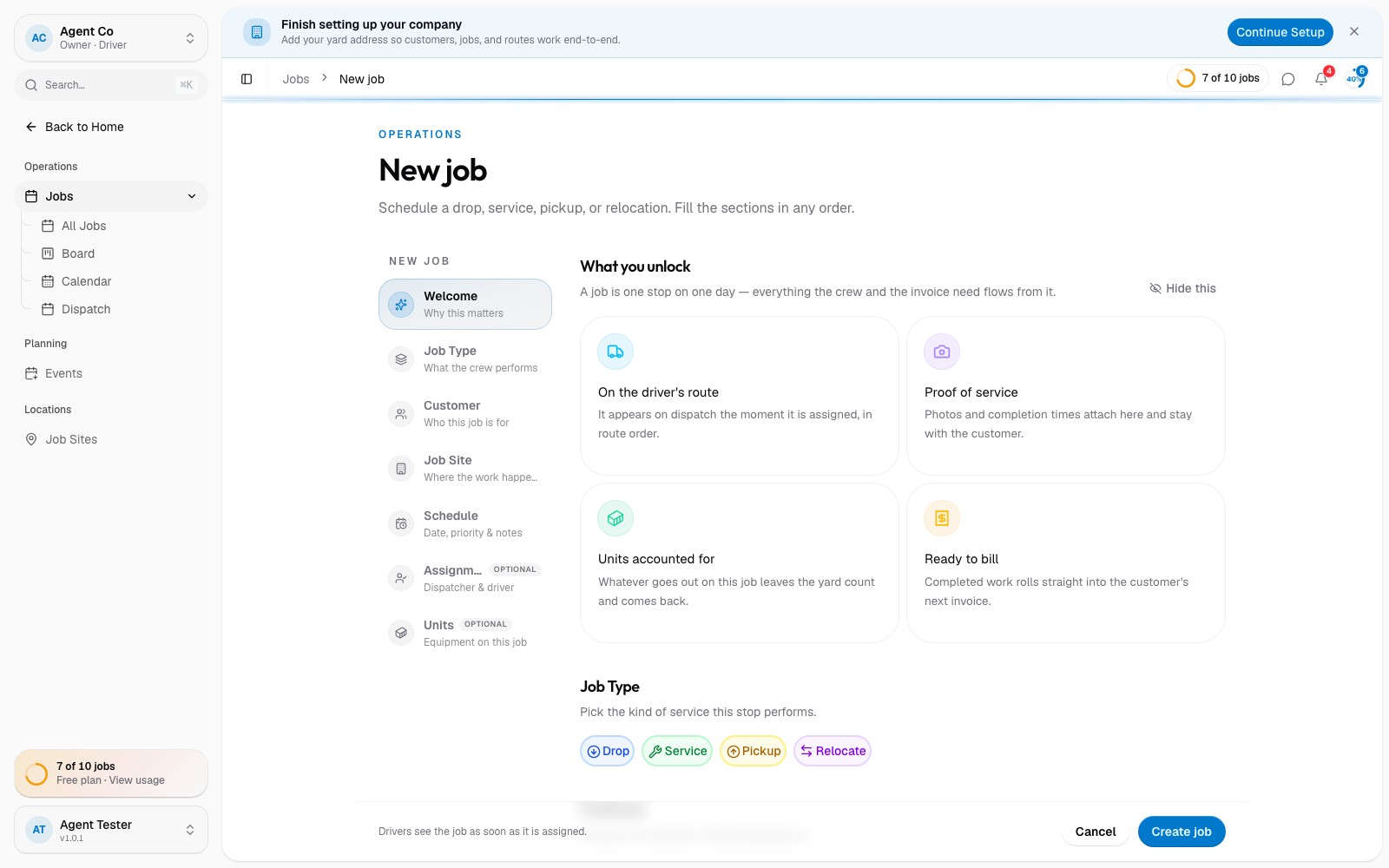
Create a job
Add a new job with its type, customer, site, and schedule.
Before you start
You need a customer and site set up already. See the customers guide if you haven't added one yet.
Go to Jobs in the sidebar, then select Add Job.
Pick the job type: Drop, Service, Pickup, or Relocate. See Job types.
Choose the customer and site.
Set the scheduled date (required) and, optionally, a time window: a preset slot like "Any time", "8:00 AM", "10:00 AM", "Noon", "2:00 PM", or "4:00 PM".
Optionally assign a driver and dispatcher, add a PO number, work order number, or notes.
Select Create job.
What you'll see
The job appears with a display ID like JOB-0001 and a Pending status if
no driver was assigned, or Assigned if you picked one. See
Display IDs and
Job statuses and what drivers see.
If something's not right
- Create job is disabled: job type, customer, site, or scheduled date is still empty. All four are required.
- No units to pick: add a unit to the customer or site first. See Units.