Jobs
Edit a job after assignment
Change the schedule, driver, or notes on a job that's already assigned.
Open the job, then select Edit.
Change what you need: dispatcher, driver, scheduled date and time, priority, PO number, work order number, notes, or status.
Save your changes.
What you'll see
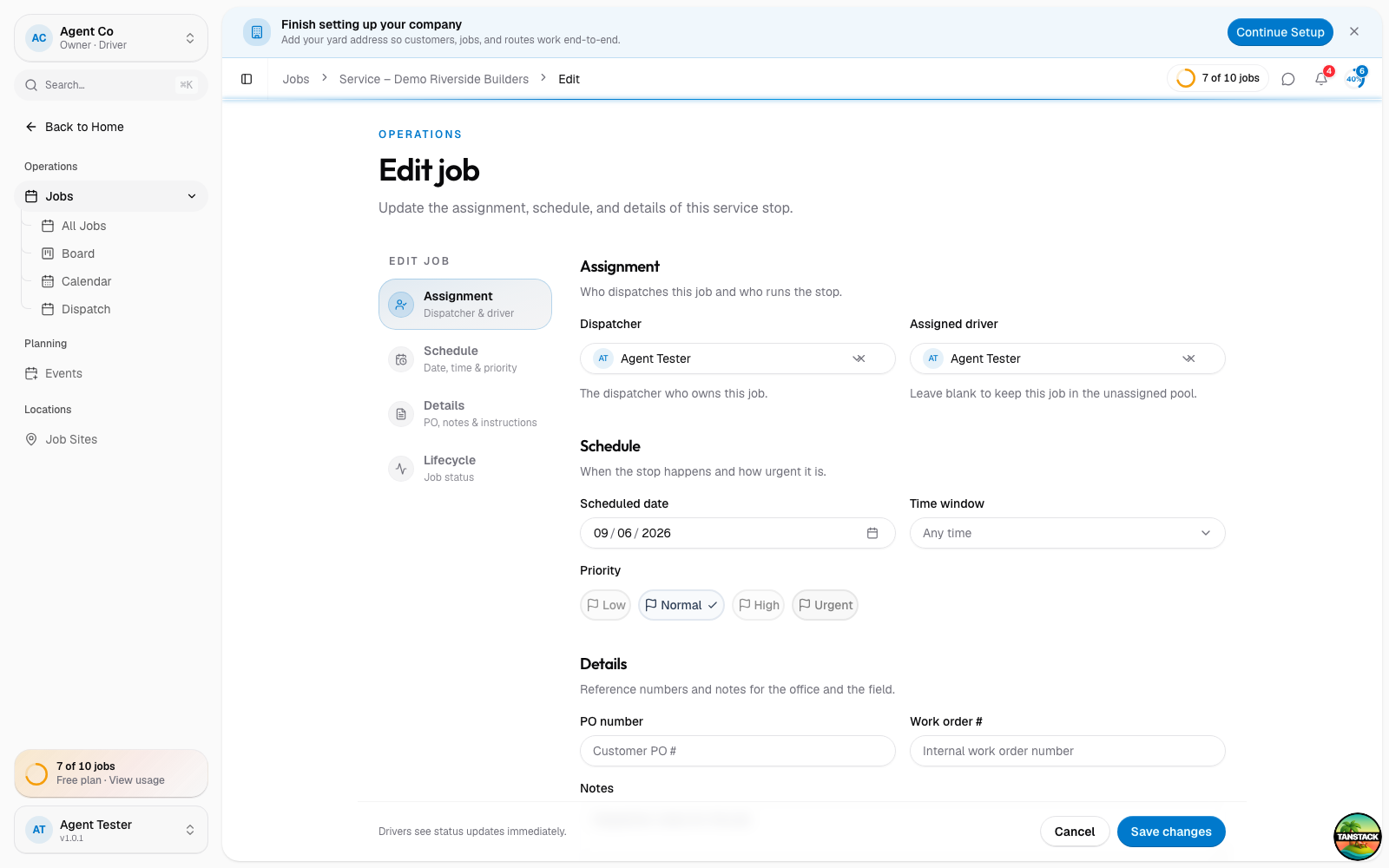
The job updates immediately everywhere it appears: the dispatch board, the calendar, and the driver's app.
Job type, customer, site, and the units on the job can't be changed here. They're set when the job is created. If one of those is wrong, cancel the job and create a new one.
If something's not right
- A field you expected isn't there: job type, customer, site, and units are fixed after creation by design.
- The driver doesn't see the change: ask them to refresh the app.