Vendors and bills
Track what you owe your own suppliers, separately from customer invoices.
Vendors and bills are for money going out, what you owe your suppliers, not money coming in from customers. You'll find both under the Accounting group in the sidebar.
Add a vendor
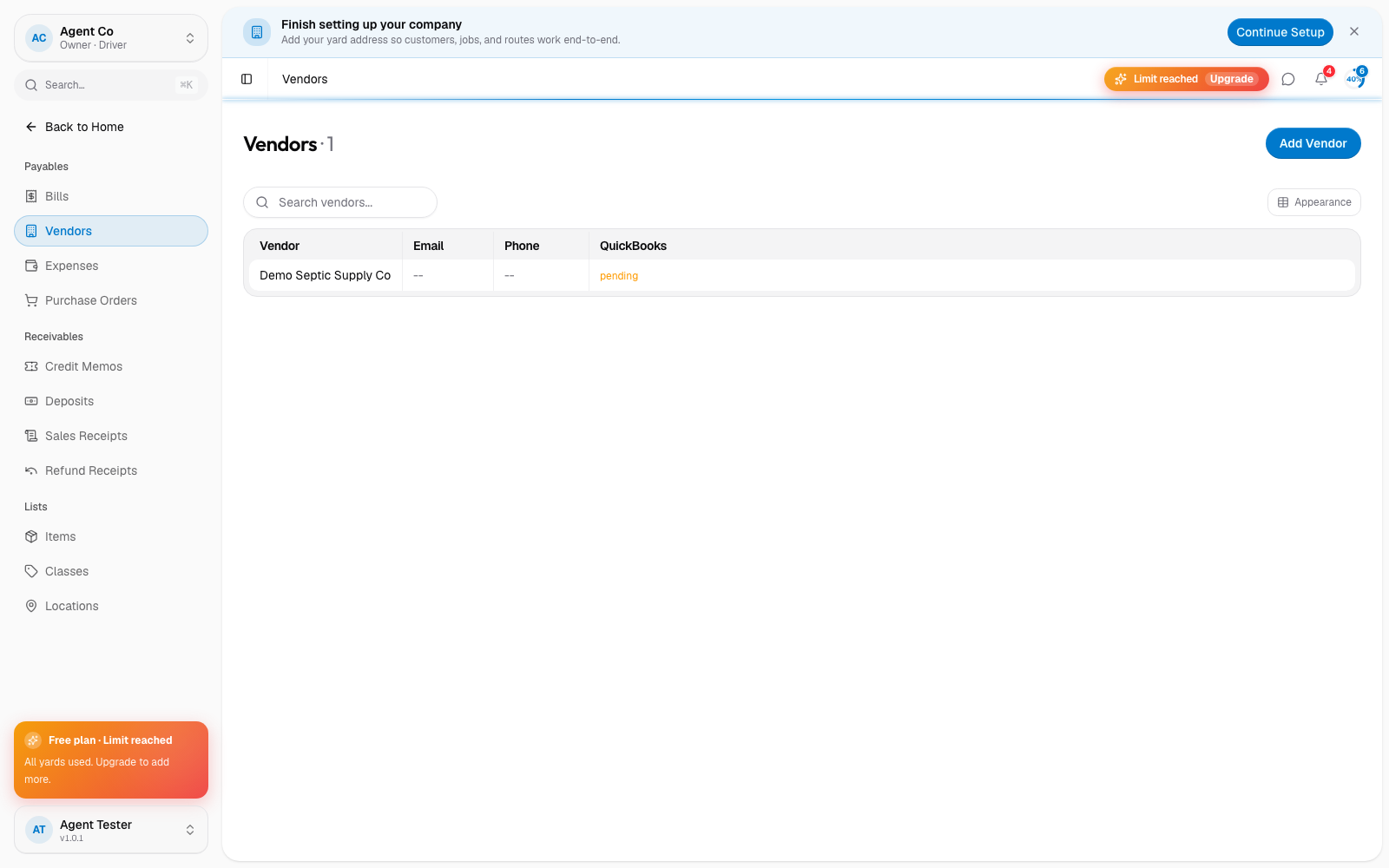
Go to Vendors, then select Add Vendor.
Add a Display name. This is required.
Optionally add an email and phone.
Select Create vendor.
Add a bill
Go to Bills, then select New Bill.
Pick the Vendor.
Add the Bill number, Amount, Txn date, and Due date.
Add a Description of what the bill is for.
Select Create bill.
What you'll see
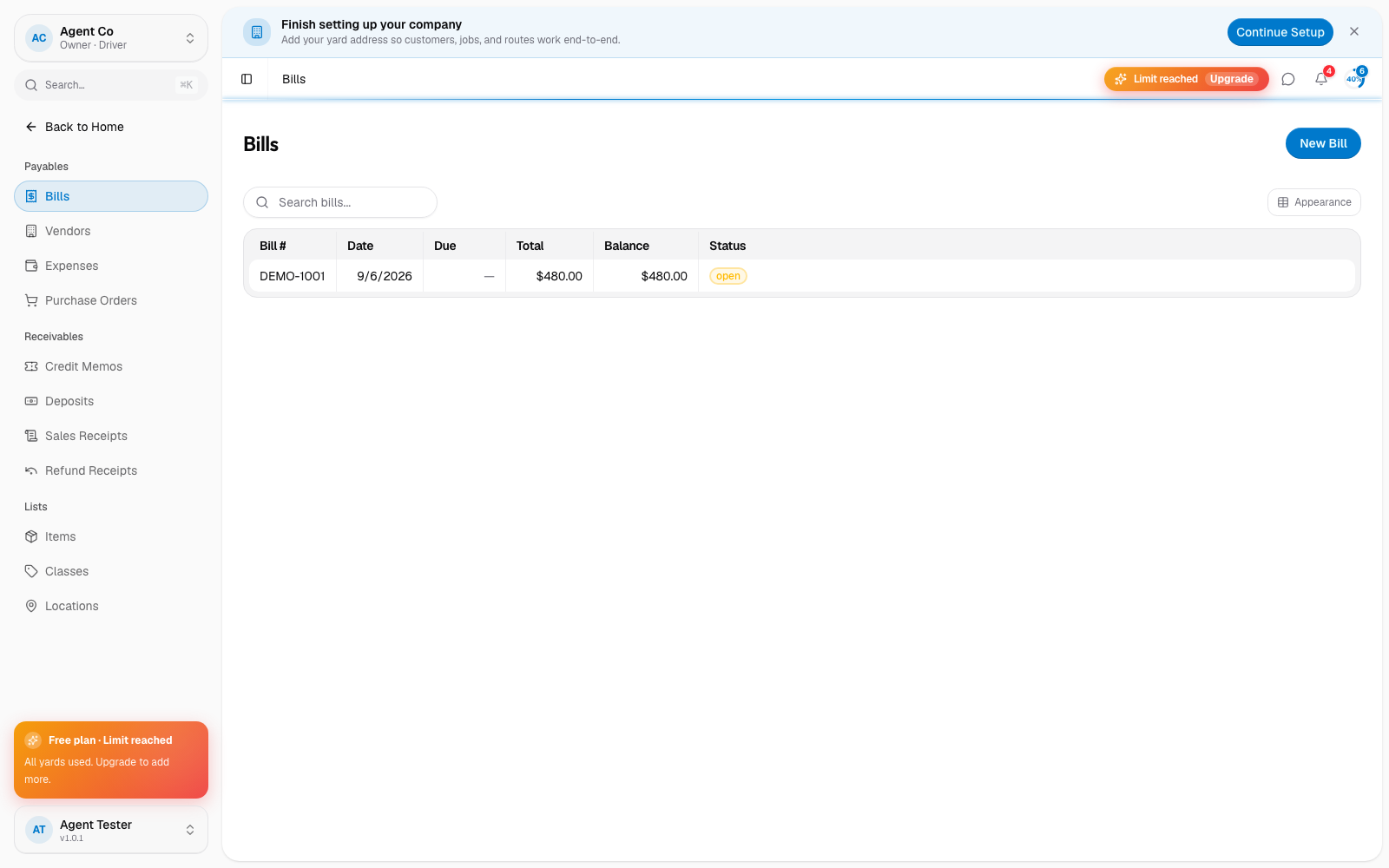
A bill's status is one of open, partial, paid, or void. From a bill's page, you can select Edit to update it or Void bill if it was created by mistake or is no longer owed.
If you connect QuickBooks, vendors and bills sync both ways, so this area mirrors what you'd see in QuickBooks' accounts payable.
If something's not right
- Create bill is disabled: pick a vendor and fill in the amount and dates first.
- Bill amount looks wrong after a QuickBooks sync: check Settings → QuickBooks → Conflicts for a mismatch that needs resolving.