Set up Stripe Connect
Connect Stripe so you can send invoices and accept card payments.
Go to Settings → Payments, and find the Stripe Connect section.
Select Set up Stripe Connect.
You're redirected to Stripe for a quick setup. Follow Stripe's steps to add your business details and bank account.
Back in DropHaul, if setup isn't finished, select Complete setup to pick up where you left off.
What you'll see
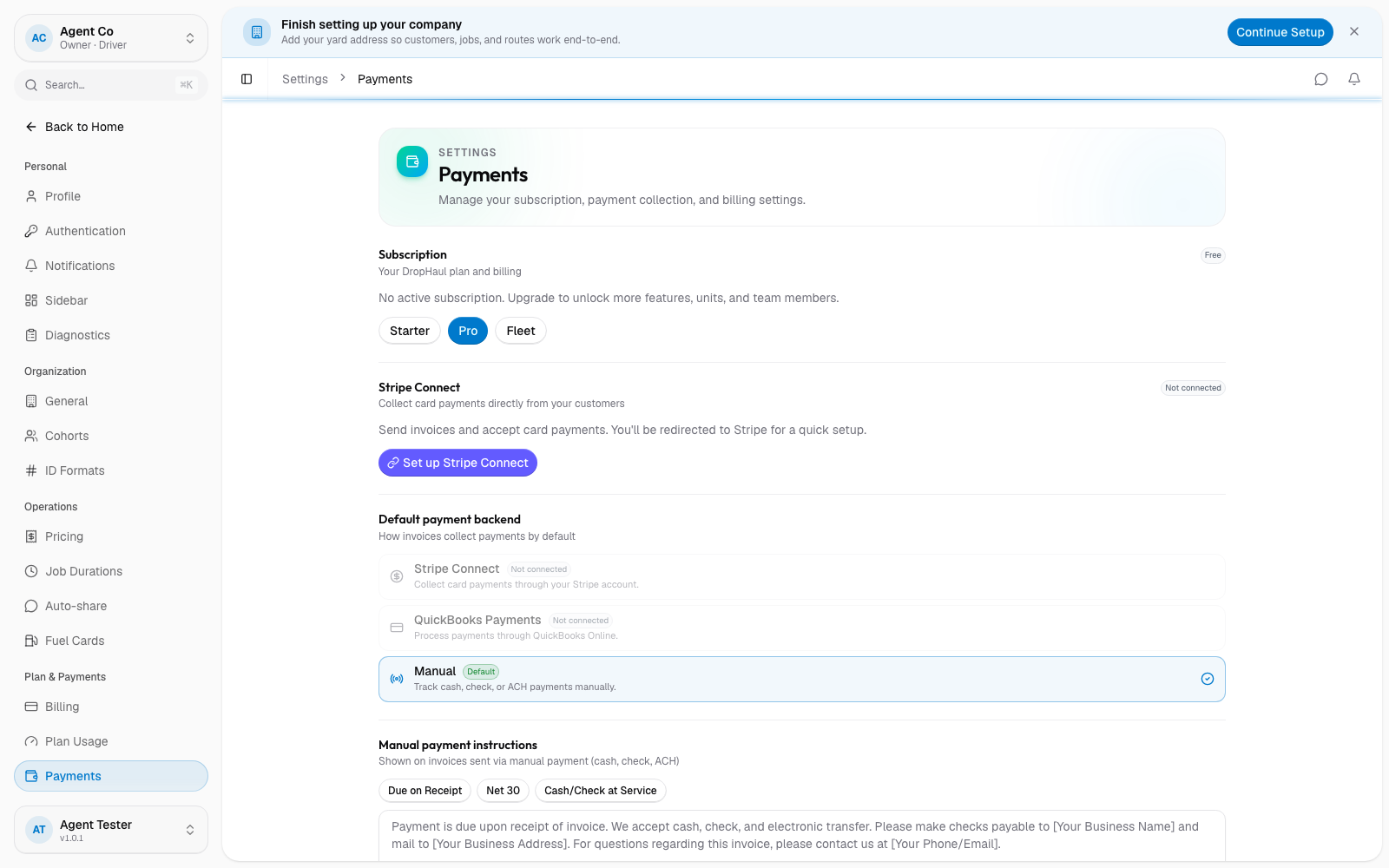
The Stripe Connect section shows one of four statuses: Not connected (not connected yet), Active (ready to accept payments), Restricted (Stripe needs more information, select Resolve issues), or Disabled. Once active, you can select Stripe Dashboard to view payouts and transactions directly in Stripe, or Disconnect to remove it.
If you also connect QuickBooks Payments, DropHaul's Default payment backend picker on the same page lets you choose which one is offered first when sending invoices: Stripe Connect, QuickBooks Payments, or Manual.
This is separate from your DropHaul subscription, which is billed under Settings → Billing and your plan.
If something's not right
- Stuck on Restricted: select Resolve issues to see what Stripe still needs from you.
- Set up Stripe Connect button won't respond: check you're signed in to the org, and try reloading the page.
- Disconnected by mistake: select Set up Stripe Connect again to reconnect. You may need to redo parts of Stripe's onboarding.