Send an invoice
Choose how a customer will pay, then send the invoice.
Before you start
Your invoice needs to be in draft status.
Sending an invoice notifies the customer. Double-check the line items and due date before you send.
Open the invoice from the Invoices list.
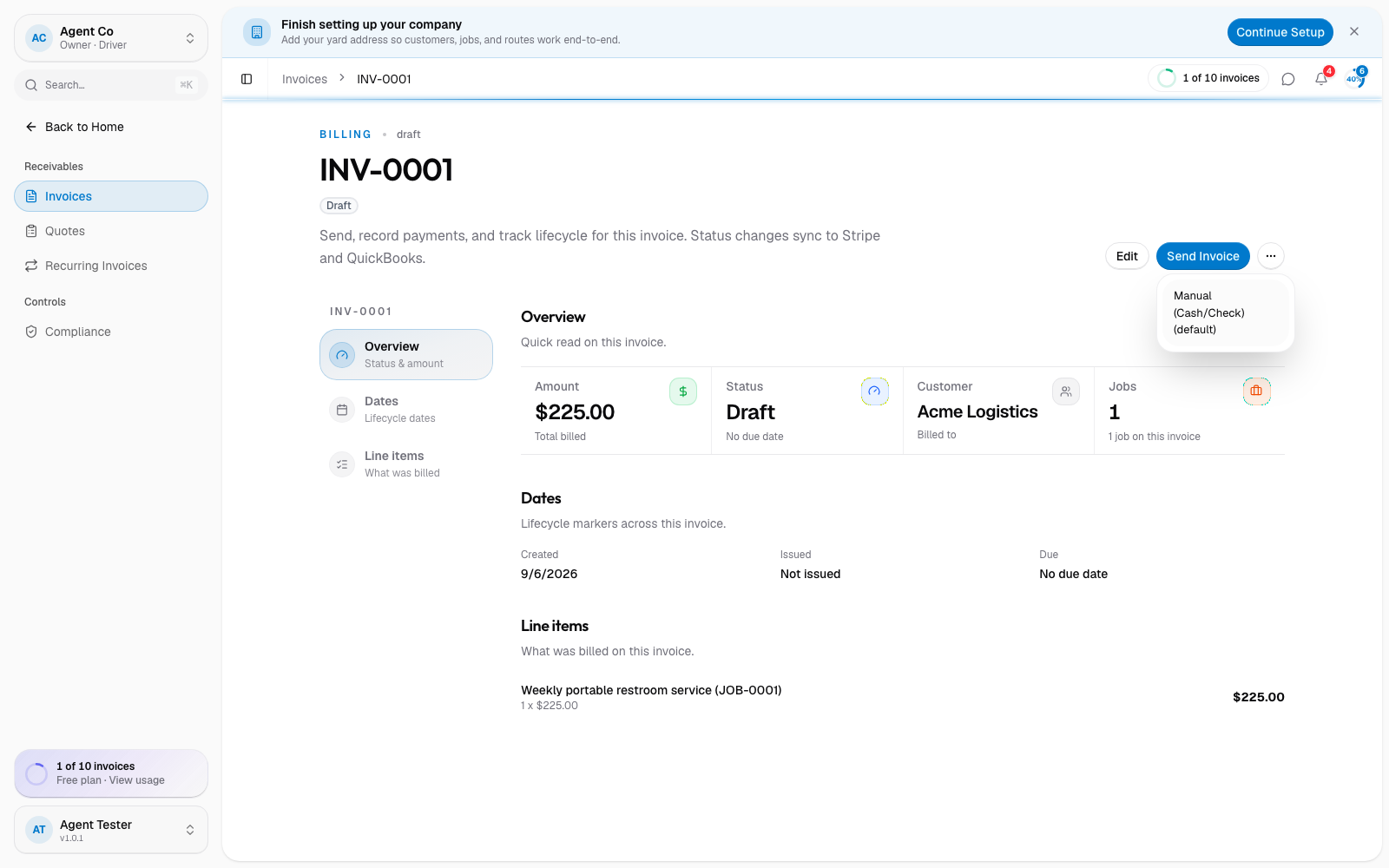
Select Send Invoice.
Pick how the customer will pay:
- Stripe Connect: available if you've connected Stripe. DropHaul finalizes a Stripe invoice, and Stripe emails the customer a payment link.
- QuickBooks Payments: available if you've connected QuickBooks.
- Manual: always available. DropHaul marks the invoice as sent, and you deliver it yourself, as a PDF or the invoice's share page.
What you'll see
Once sent, the invoice's status changes to Sent. From here you can select Mark Paid, copy the Payment Link, or Record Payment for a payment that happened outside DropHaul. Open the invoice's menu to find Void invoice. It's hidden once the invoice is already paid or void.
Voiding an invoice can't be undone. Only void an invoice you're sure is wrong or no longer owed.
If something's not right
- Stripe Connect or QuickBooks Payments option is missing: that payment method isn't connected yet. See Set up Stripe Connect or Connect QuickBooks.
- Customer says they didn't get a payment link: with Manual, DropHaul doesn't send one. You deliver the invoice yourself.
- Sent the wrong amount: void the invoice and create a new one. A sent invoice's line items shouldn't be edited after the fact.