Connect QuickBooks
Sync customers, invoices, payments, quotes, bills, and vendors with QuickBooks.
Go to Settings → Integrations, and find the QuickBooks card.
Select Connect. This opens QuickBooks sign-in in a new tab.
Sign in to QuickBooks and authorize DropHaul.
Back in DropHaul, the card shows connected, along with your realm ID and last sync time.
First-time import
If this is your first time connecting, go to Settings → QuickBooks → Import to bring in your existing QuickBooks data before day-to-day syncing starts.
What you'll see
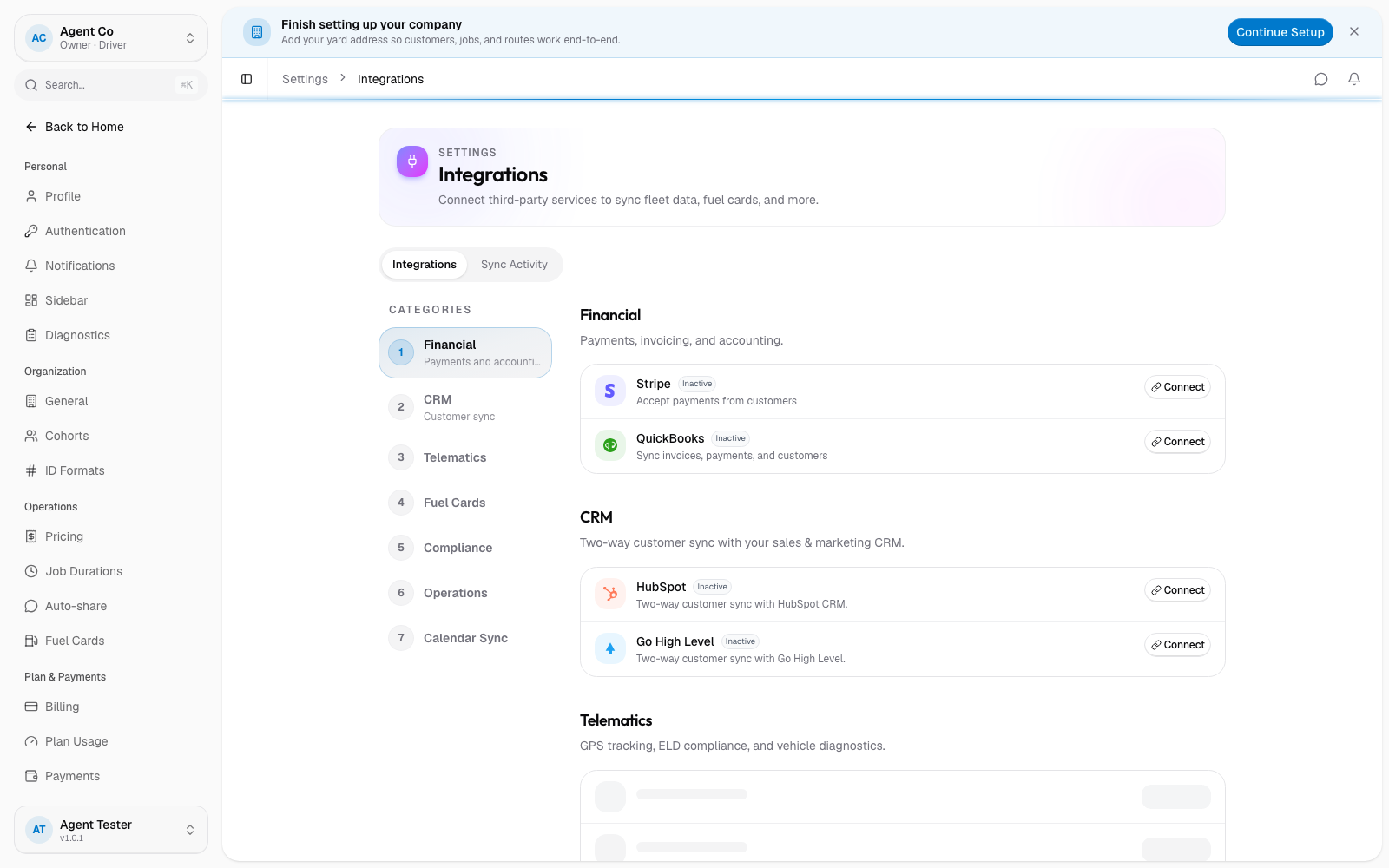
Once connected, DropHaul syncs customers, invoices, payments, quotes (as QuickBooks estimates), credit memos, bills, and vendors, both ways. Select the refresh icon any time to sync immediately instead of waiting. It's icon-only, but hovering shows a Sync now tooltip.
Select Manage to open Settings → QuickBooks, which has tabs for:
- Health: counts of items Queued, In flight, Failed, in Conflict, or Dead.
- Conflicts: records that changed in both places and need a decision.
- Outbox: changes waiting to sync to QuickBooks.
- Import: the first-connect wizard, and where you can re-run it.
- Entities: every synced record and its QuickBooks link.
- Log: a history of sync activity.
- Status: the overall connection status.
If something's not right
- Connect button does nothing: check pop-ups aren't blocked. The QuickBooks sign-in opens in a new tab.
- A record shows as a Conflict: open Settings → QuickBooks → Conflicts and pick which version to keep.
- Sync stuck or failing: check Health for Failed or Dead items, and the Log tab for details.
- Need to start over: select Disconnect, then connect again. You'll be asked to confirm before disconnecting.