Send a quote
Get a quote in front of a customer, then track what they decide.
Before you start
Your quote needs to be in draft status. See Create a quote if you haven't made one yet.
Sending a quote puts it in front of the customer right away. Double-check line items and pricing before you send.
Open the quote from the Quotes list.
Select Send Quote.
Recording the customer's answer
Open the sent quote.
Once the customer tells you their decision, select Mark Accepted or Mark Declined.
If accepted, select Convert to invoice when you're ready to bill.
What you'll see
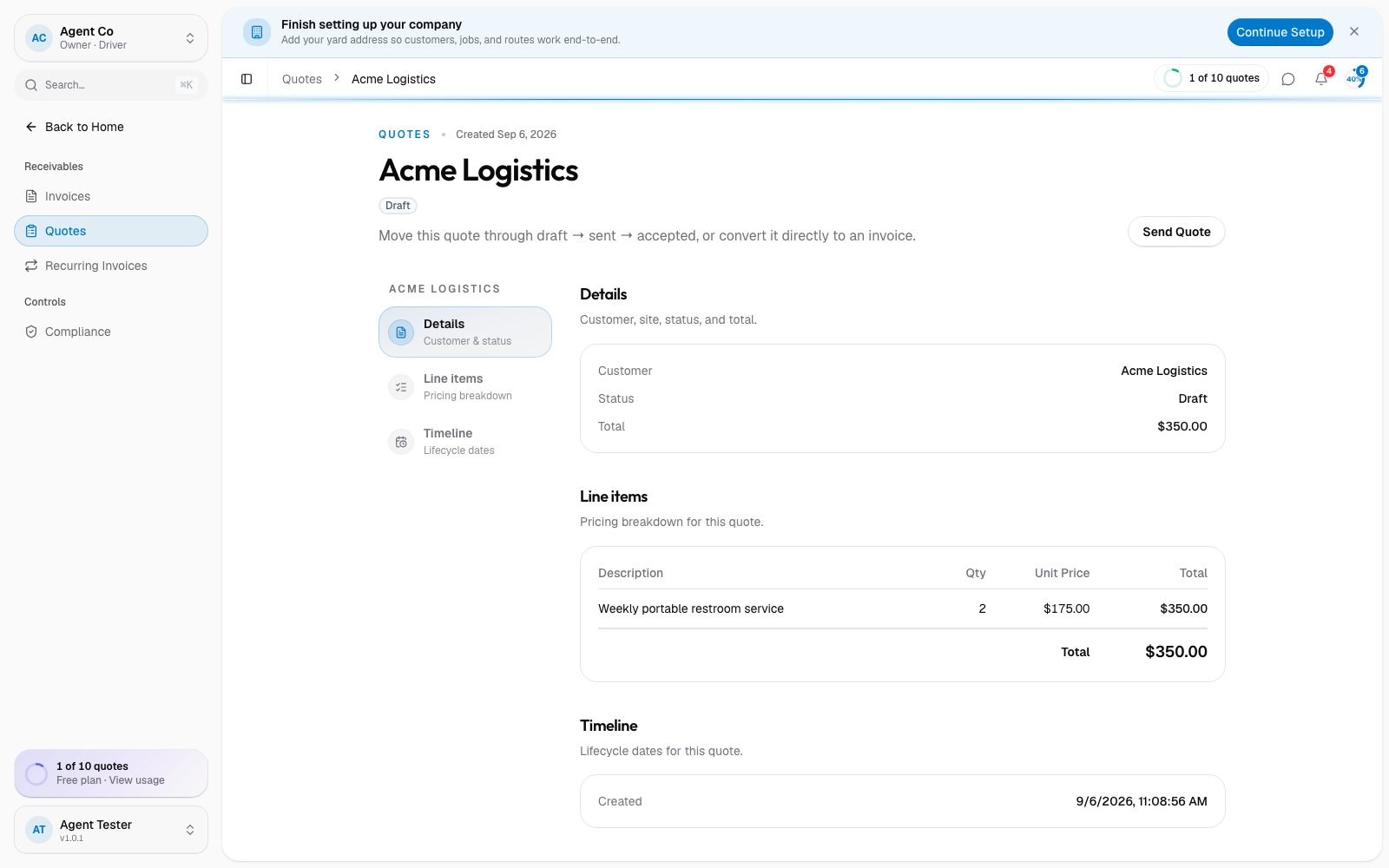
The customer gets a link to a public, read-only view of the quote. There's no accept or decline button for them there, they tell you directly (by phone, text, or in person), and you record it on your side.
If something's not right
- Send Quote is missing: the quote isn't in draft status anymore.
- Customer says they can't see pricing on the link: resend them the link. It's a stable URL tied to that quote and doesn't expire on its own.
- Marked the wrong decision: reopen the quote and select the correct status.