Unit statuses
What each unit status means and how a unit moves between them.
A unit is always in one of five statuses. You can see counts for each on the Units list, and select a stat tile to filter the list to that status.
- In Yard: the unit is at your yard, not assigned to a site. New units start here.
- Deployed: the unit is at a job site. Deploying a unit requires picking a Job Site.
- In Transit: the unit is on its way to or from a site.
- Maintenance: the unit is out of service for a repair, inspection, or cleaning. See Send to maintenance below.
- Retired: the unit is permanently out of service. See Retire a unit.
To change a unit's status directly, open the unit and select Edit.
Pick the new Status. If you choose Deployed, also pick a Job Site.
Save your changes.
Sending a unit to maintenance
Open the unit, select the overflow menu, then Send to maintenance. This only changes the unit's status to Maintenance. It doesn't create a work order. To open an actual work order, with a type of Preventive, Repair, Inspection, or Cleaning, go to Create and track maintenance instead.
What you'll see
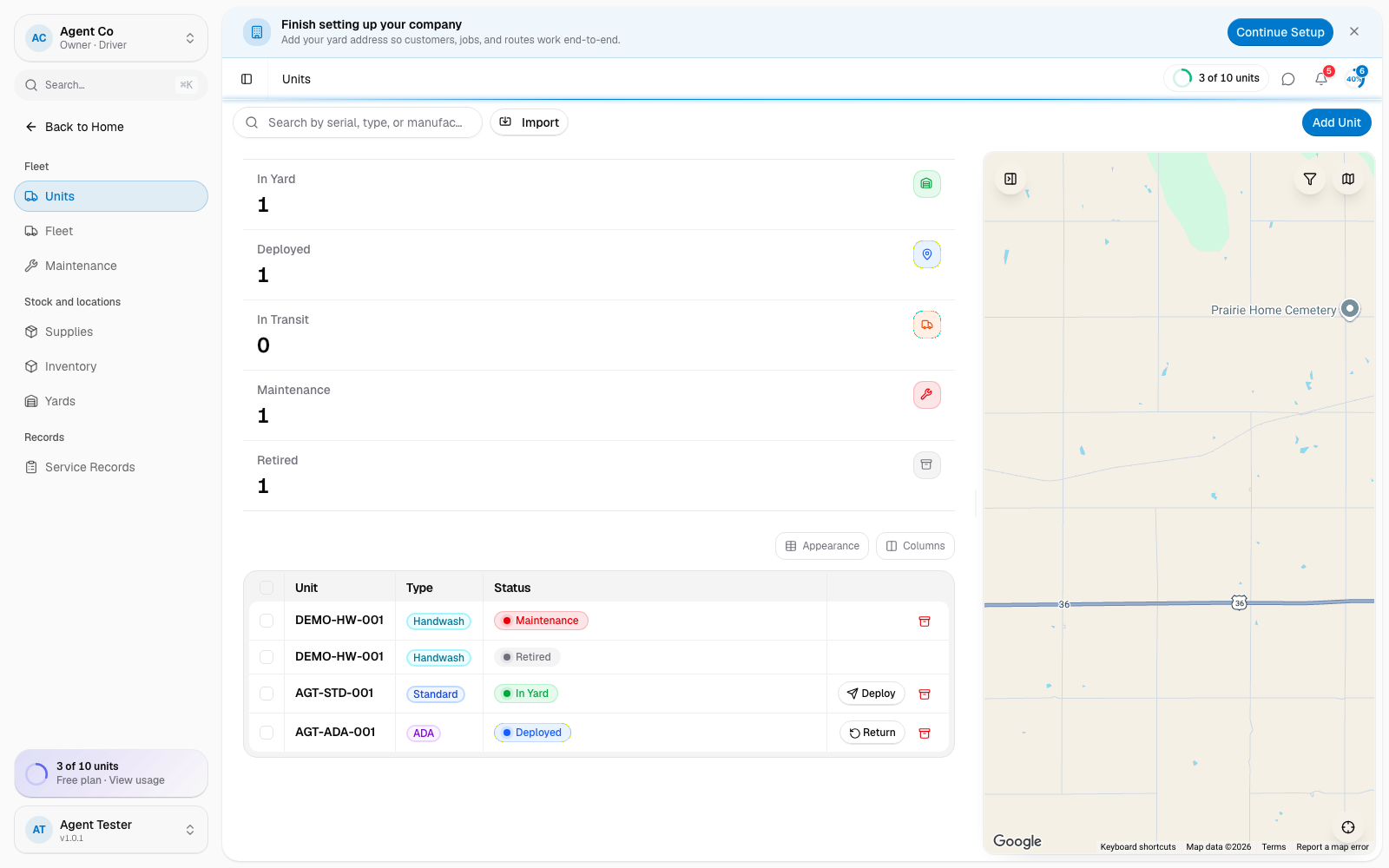
Changing a unit's status from its Edit page updates it immediately. Deploying, returning, or retiring from the unit's header does the same thing with fewer steps, and is the faster path for those three moves.
If something's not right
- Status won't change to Deployed: you need to pick a Job Site first.
- Unit stuck in Maintenance: if it has an open work order, mark that completed first. Either way, open the unit and change its Status to move it out of Maintenance.
- Wrong status after a bulk action: select the unit's checkbox on the Units list and use the bulk action bar to correct it.