Scan a unit
Look up a unit or link it to a job with its QR code.
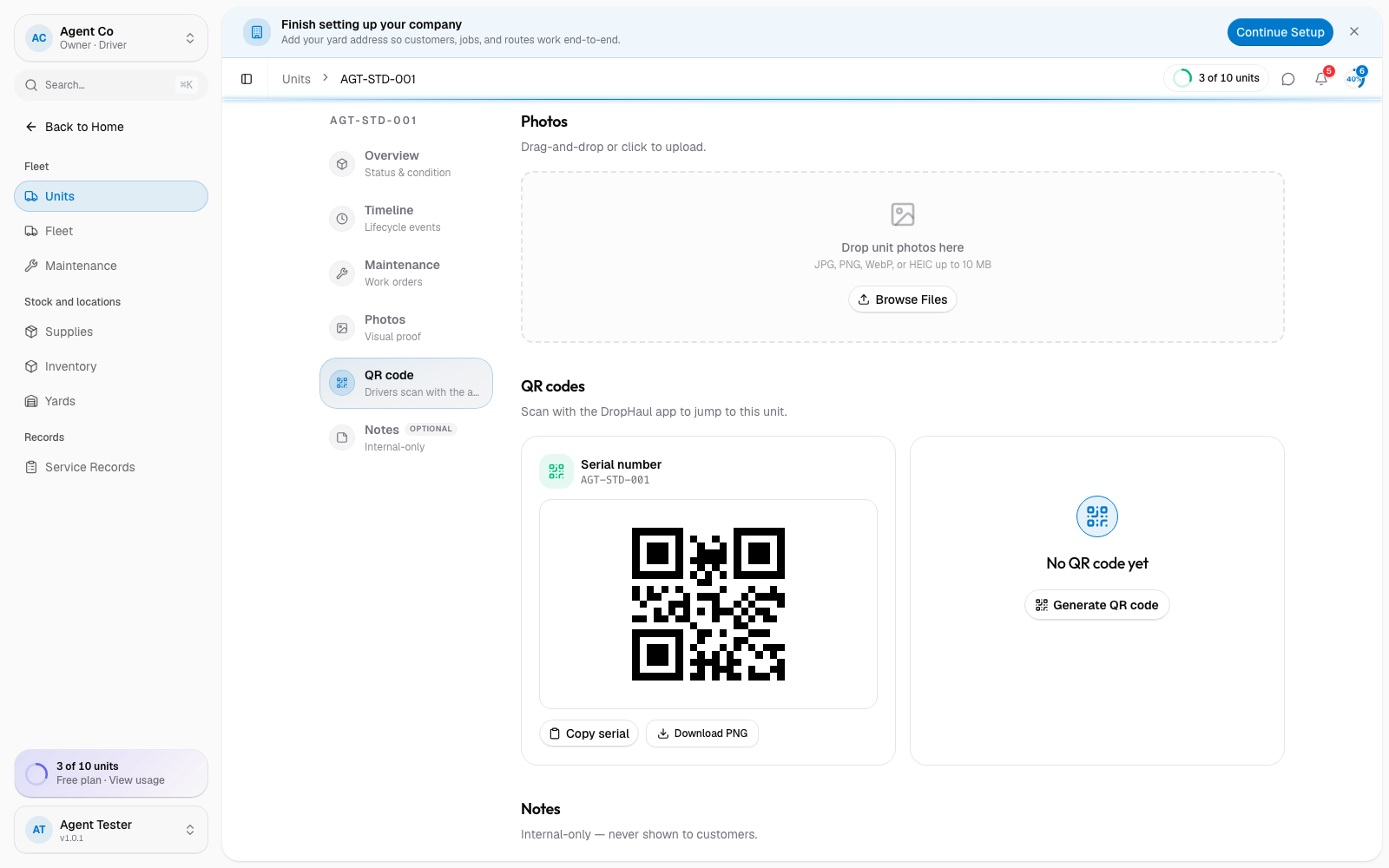
Every unit has a serial-number QR code you can scan from the DropHaul iOS app to look it up, or to link it to a job. You can also generate an app-specific QR code for a unit; see the steps below.
NFC tag scanning is planned but not available yet. Use the QR code for now.
On the unit's page in DropHaul web, open the QR codes section and select Download PNG, or select Generate QR code for a code the mobile app can scan.
Print or stick the QR code onto the unit.
In the driver app, tap Scan Unit on the home screen's quick actions, or open the camera from a job or stop.
Point the camera at the unit's QR code.
What you'll see
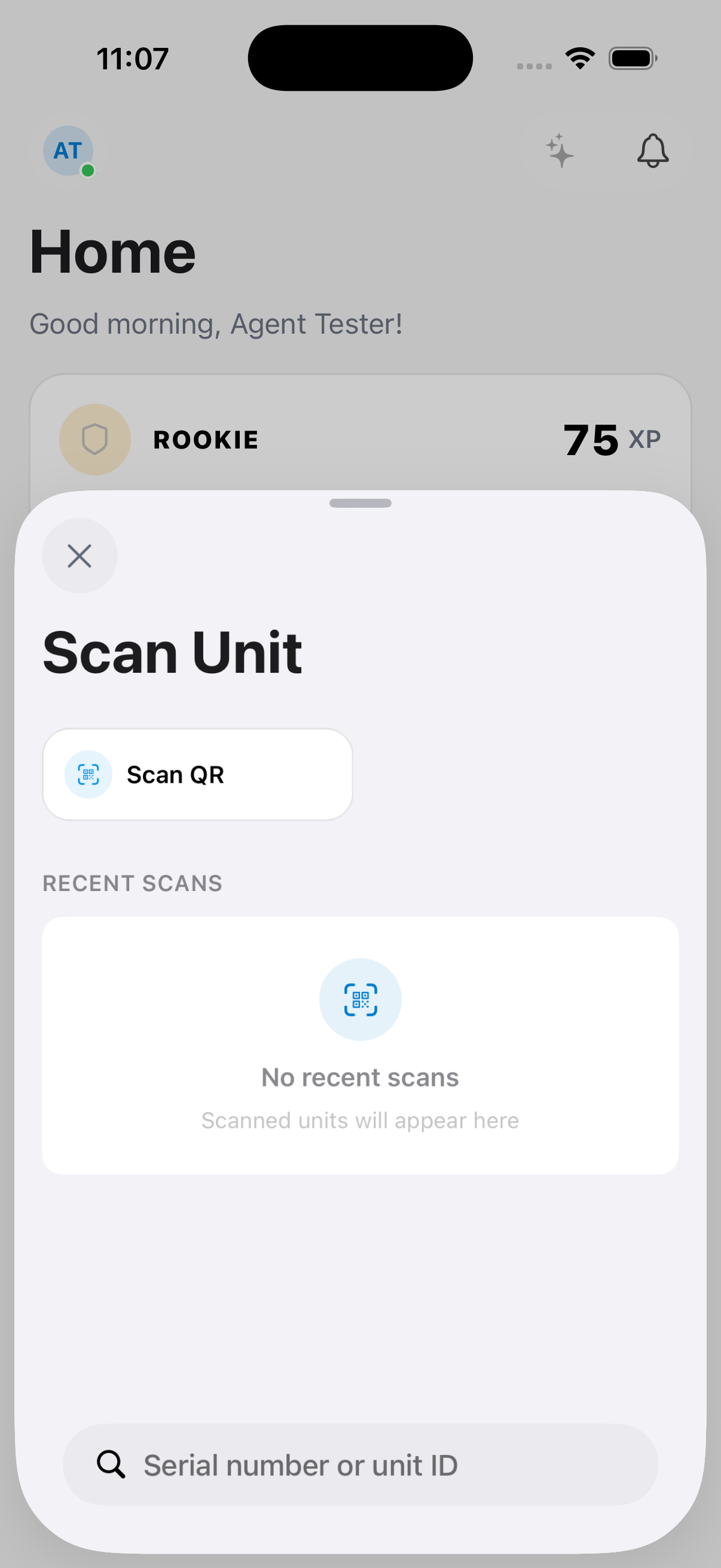
A successful scan shows a "Unit Found" or "Unit Linked" card with the unit's details. If you scanned from inside a job or stop, the unit links to that job. If the unit is already linked somewhere else, DropHaul asks "Unit Already Linked" and lets you choose Link anyway if that's correct. Your last several scans stay in Recent Scans on the device, even offline.
If something's not right
- Camera won't open: check that DropHaul has camera permission in your phone's Settings app.
- Scan says unit not found: the QR code may be for a different company or a unit that was deleted. Try looking the unit up by serial number instead.
- Wrong job linked: open the job and unlink the unit, then scan it again from the correct job or stop.