Deploy and return a unit
Send a unit from the yard to a job site, then bring it back.
Before you start
A unit needs to be In Yard before you can deploy it, and Deployed before you can return it.
Go to Units in the sidebar and open the unit you want to move.
Select Deploy at the top of the unit's page. This opens the unit's edit page, it isn't a separate action.
Set Status to Deployed. The Job Site field only appears once Status is set to Deployed, so pick it now.
Save. The unit's status changes to Deployed and its current site updates.
Returning a unit
Open the deployed unit's page.
Select Return to yard at the top of the page.
What you'll see
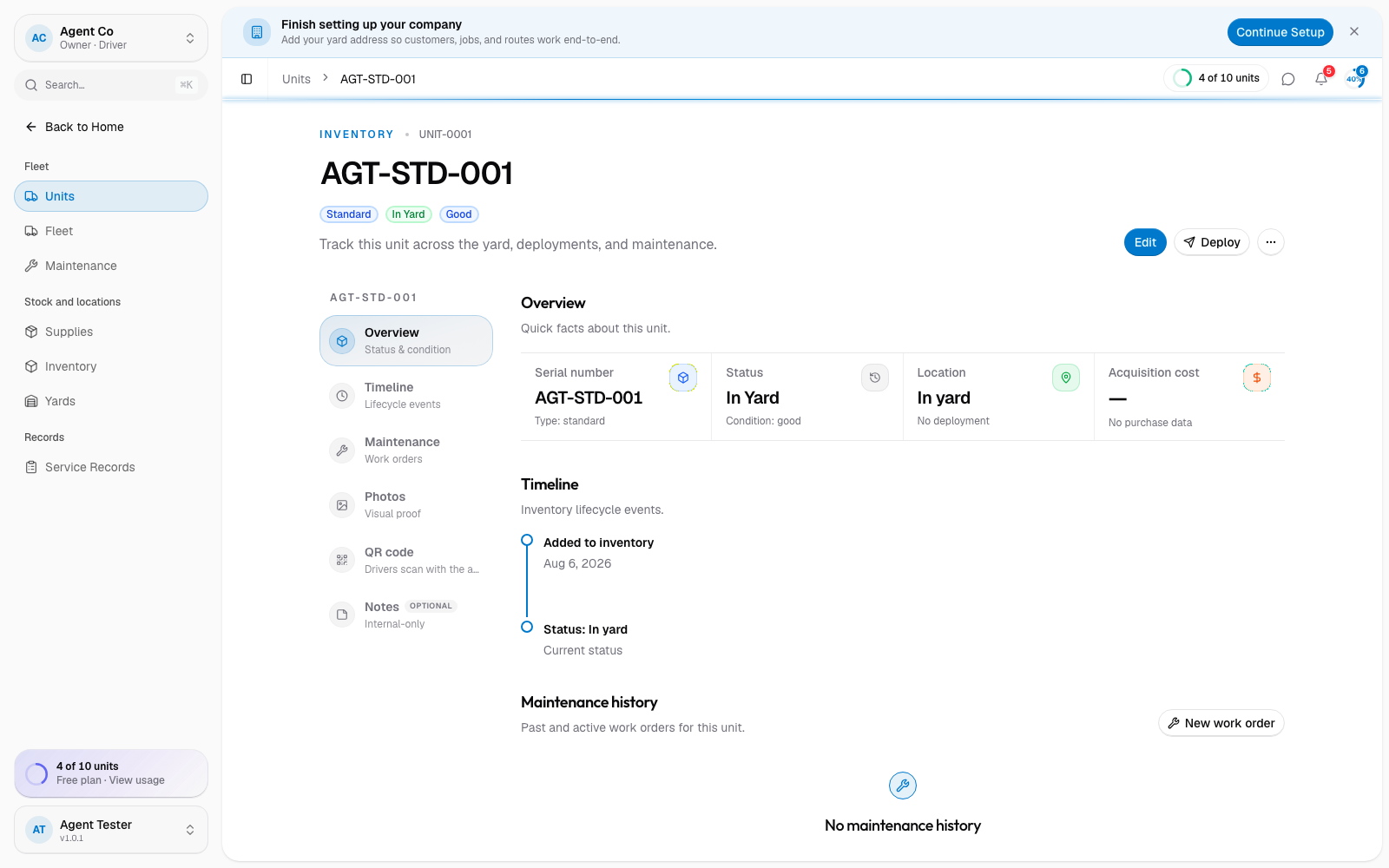
You can also deploy or return units without opening each one: from the Units list, select a row's checkbox and use the bulk action bar's Deploy or In Yard buttons for several units at once. The stat tiles at the top of the Units list (In Yard, Deployed, In Transit, Maintenance, Retired) update right away, and you can select a tile to filter the list to only that status.
If something's not right
- Deploy button is missing: the unit isn't In Yard. Check its current status under Unit statuses.
- Can't pick a Job Site: the site needs to exist first. See Sites and the map.
- Unit shows at the wrong site: open the unit and deploy it again with the correct site.