Create and track maintenance
Open work orders for units and trucks, and set up recurring maintenance schedules.
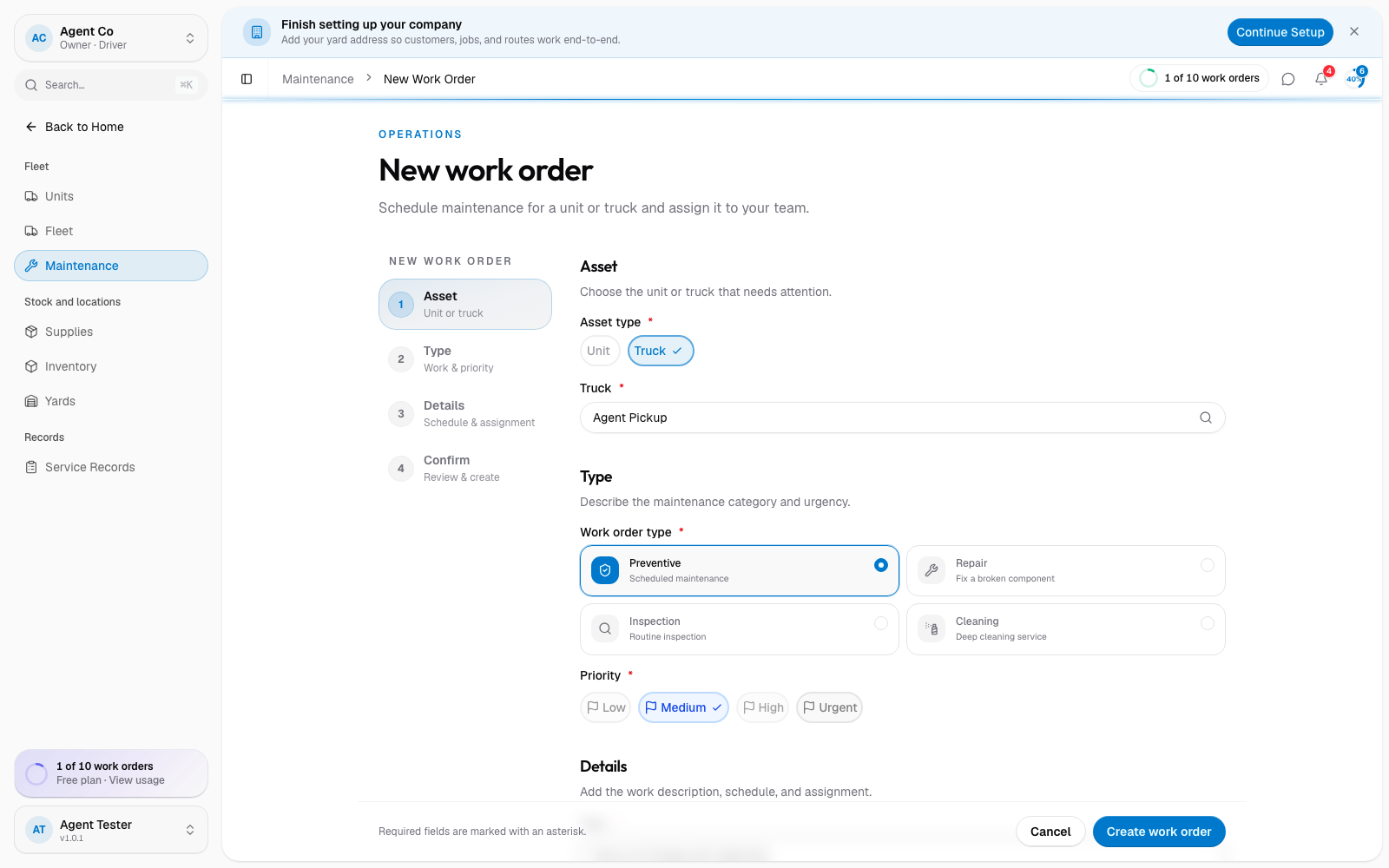
Go to Maintenance in the sidebar, then select New work order.
In the Asset section, choose Unit or Truck, then pick which one from the list.
In Type, pick a category: Preventive (scheduled maintenance), Repair (fix a broken component), Inspection (routine inspection), or Cleaning (deep cleaning service). Set a priority: Low, Medium, High, or Urgent.
In Details, add a Title (required), a scheduled date, who it's assigned to, and any notes.
Review in Confirm, then select Create work order.
What you'll see
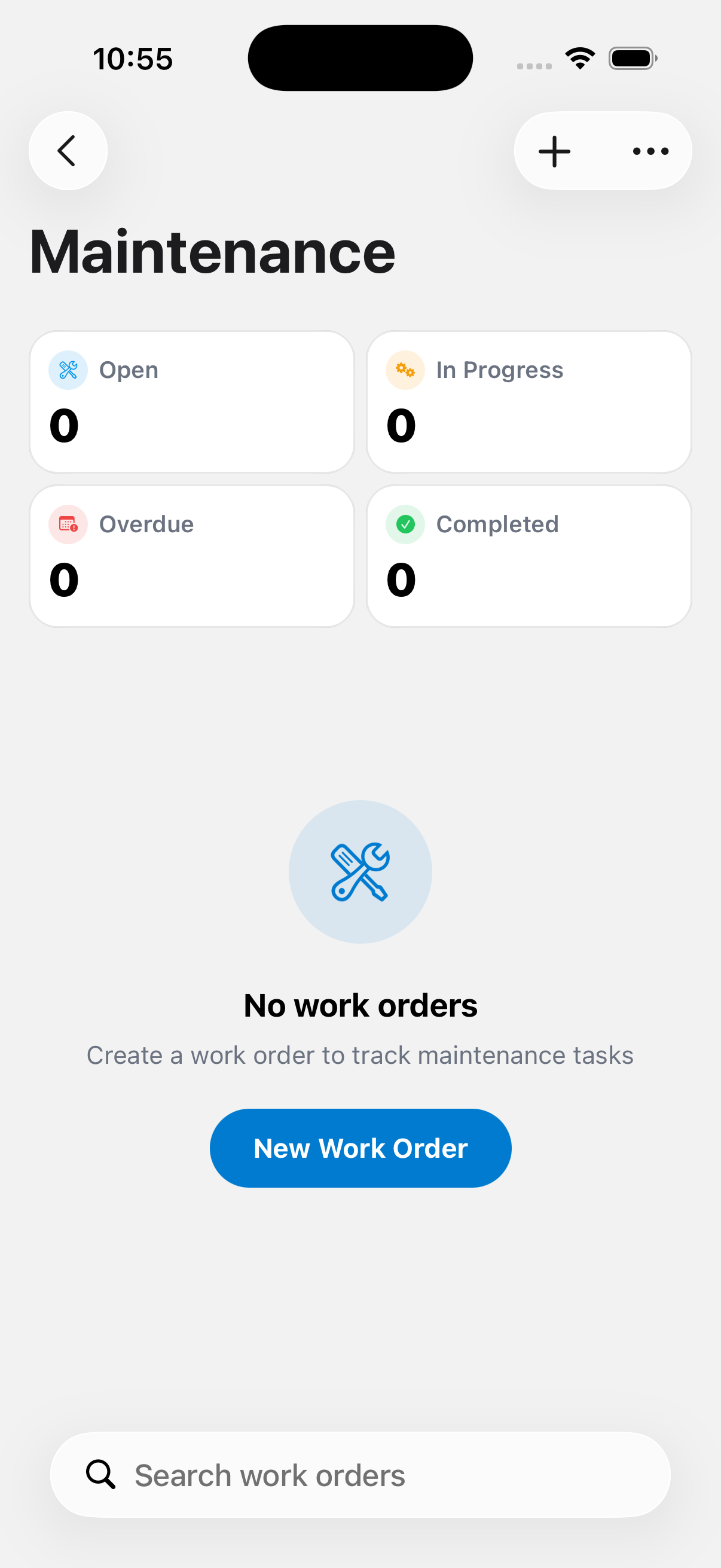
Work orders move through Open, In Progress, Completed, and Cancelled. On a vehicle or unit's page, its maintenance history lists past and current work orders with their status and cost.
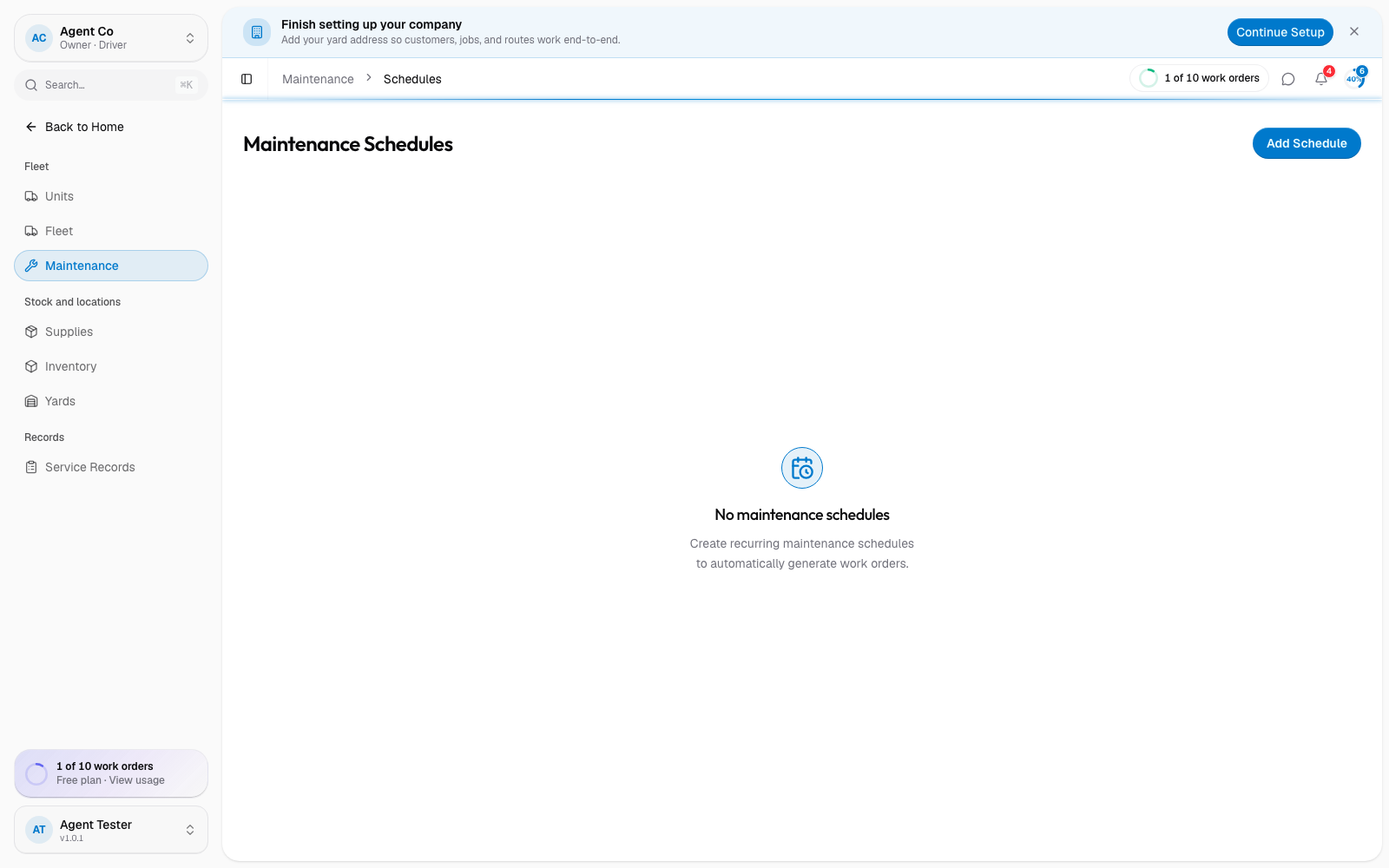
To set up recurring maintenance instead of a one-off work order, select Schedules from the Maintenance page. A schedule triggers based on days, miles, engine hours, or a service count, whichever interval fits the task, and tracks when it's next due.
If something's not right
- Can't find New work order: check your role has fleet or maintenance write access under Roles and permissions. Technicians can view work orders but can't create them; only owners, admins, and dispatchers can.
- A schedule isn't triggering: schedules track mileage and engine hours from the vehicle's own records. Make sure those are kept up to date.