Connect a fuel card
Link a WEX or Fuelman card to a vehicle and driver so transactions import automatically.
Before you start
You need to be an owner or admin. Everyone else is redirected to Settings → General.
Go to Settings → Fuel Cards.
Select Assign Card.
Choose a Provider, WEX or Fuelman. For Fuelman, connect with your API key and account number first.
Enter the card's Last 4 digits, then pick the Truck and Driver it belongs to.
Select Assign card.
What you'll see
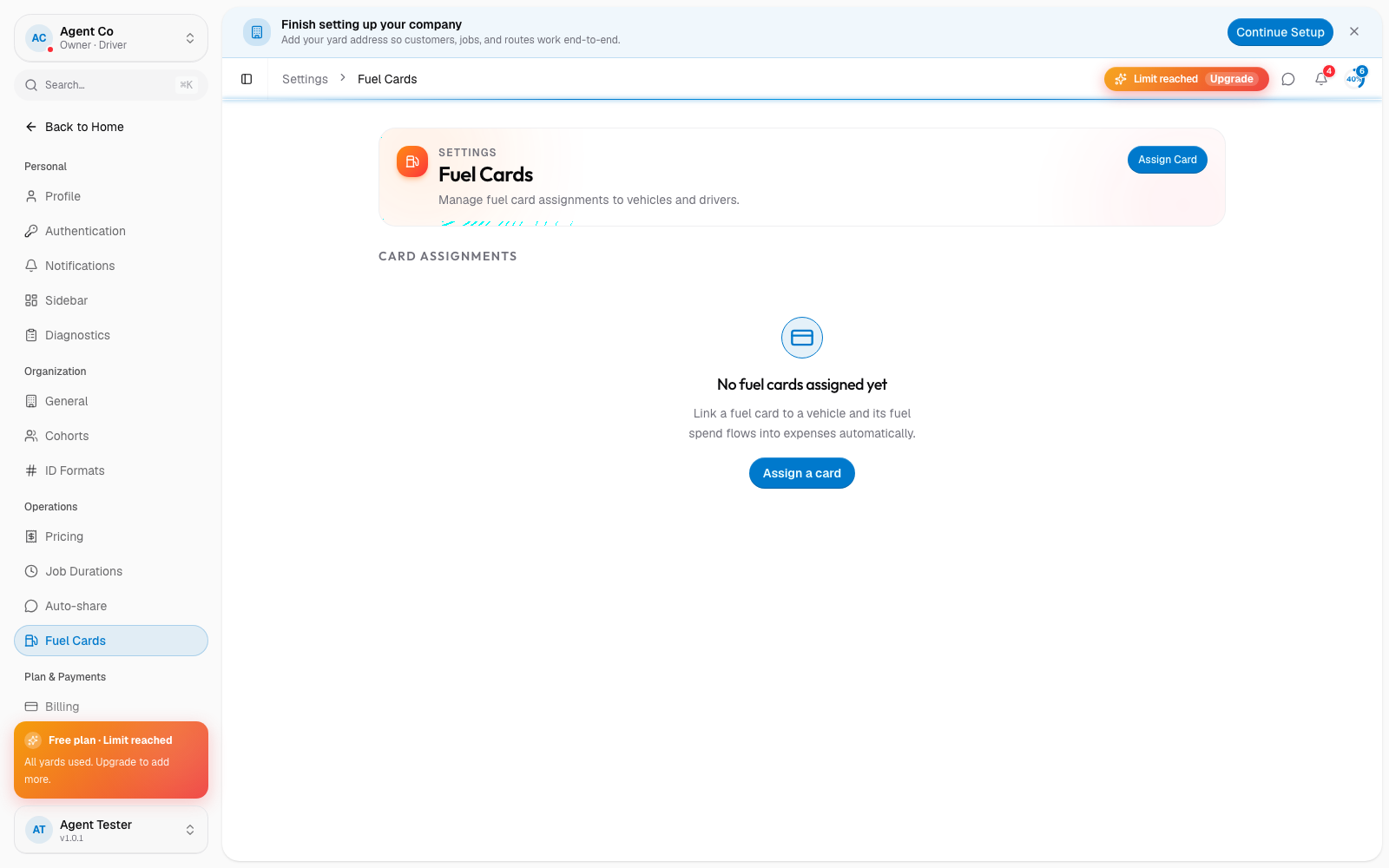
Each card shows a sync status of Connected or Inactive. For a fuller status, including a separate Error state, check Settings: integrations instead. DropHaul never stores a full card number, only the last 4 digits. Fuel card transactions sync automatically about every 4 hours and show up as fuel entries tied to the assigned vehicle.
The driver app has its own Log Fuel quick action for manual entries. Card transactions and manual entries both feed the same fuel history. See Log fuel, mileage, and expenses.
If something's not right
- Integrations shows an Error status: reconnect the provider from Settings → Fuel Cards and re-enter your API key.
- Transactions aren't matching a vehicle: check the card is assigned to the right vehicle, transactions match by card assignment, not automatically by fuel type.
- A card should stop being used: deactivate it from Settings → Fuel Cards rather than deleting the vehicle.