Add a vehicle to your fleet
Register a truck with its identity, specs, and purchase details.
Go to Fleet in the sidebar, then select Add Vehicle.
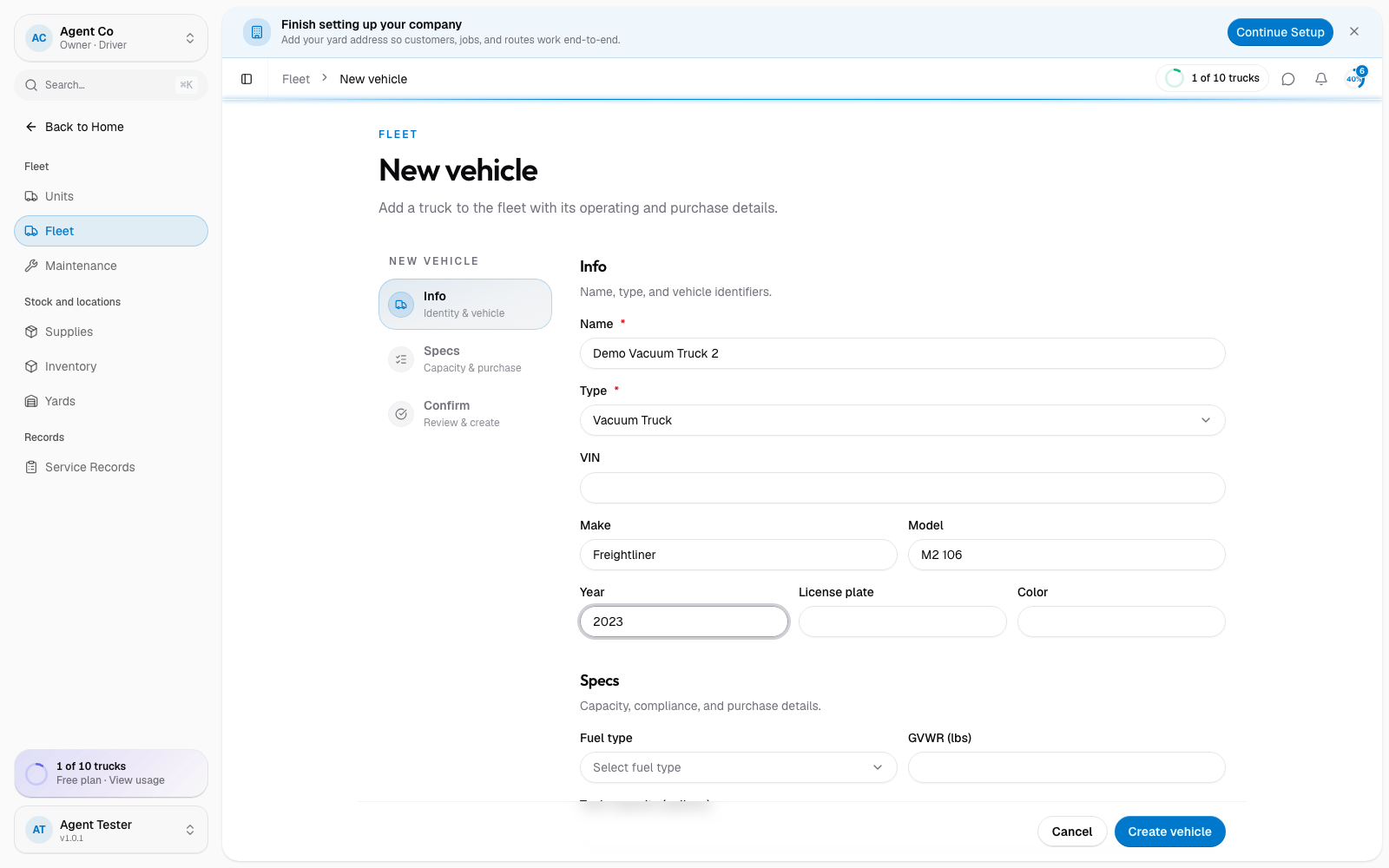
In the Info section, add a Name (for example "Truck 1") and a Type: Pump Truck, Vacuum Truck, Service Truck, Flatbed, Combo, or Pickup. Both are required.
Fill in VIN, Make, Model, Year, License plate, and Color if you have them.
In Specs, add Fuel type, GVWR, current mileage, insurance and DOT inspection details, and purchase date and cost. Tank or flatbed capacity fields appear automatically based on the type you picked.
Review everything in Confirm, then select Create vehicle.
What you'll see
The vehicle starts Active and is available to fleet operations right after you create it.
You can also import several vehicles at once. Look for the import option next to Add Vehicle on the Fleet list.
If something's not right
- Add Vehicle is disabled: you may have hit your plan's vehicle limit. Check Settings → Billing and your plan.
- Only some fields showed up: capacity fields depend on the vehicle type. Pick the type first, then the matching fields appear.