Check and change a vehicle's status
See which vehicles are active, in maintenance, or out of service, and change a vehicle's status.
Go to Fleet in the sidebar.
Use the search box to find a vehicle by name, make, or model, or select a status tile to filter the list.
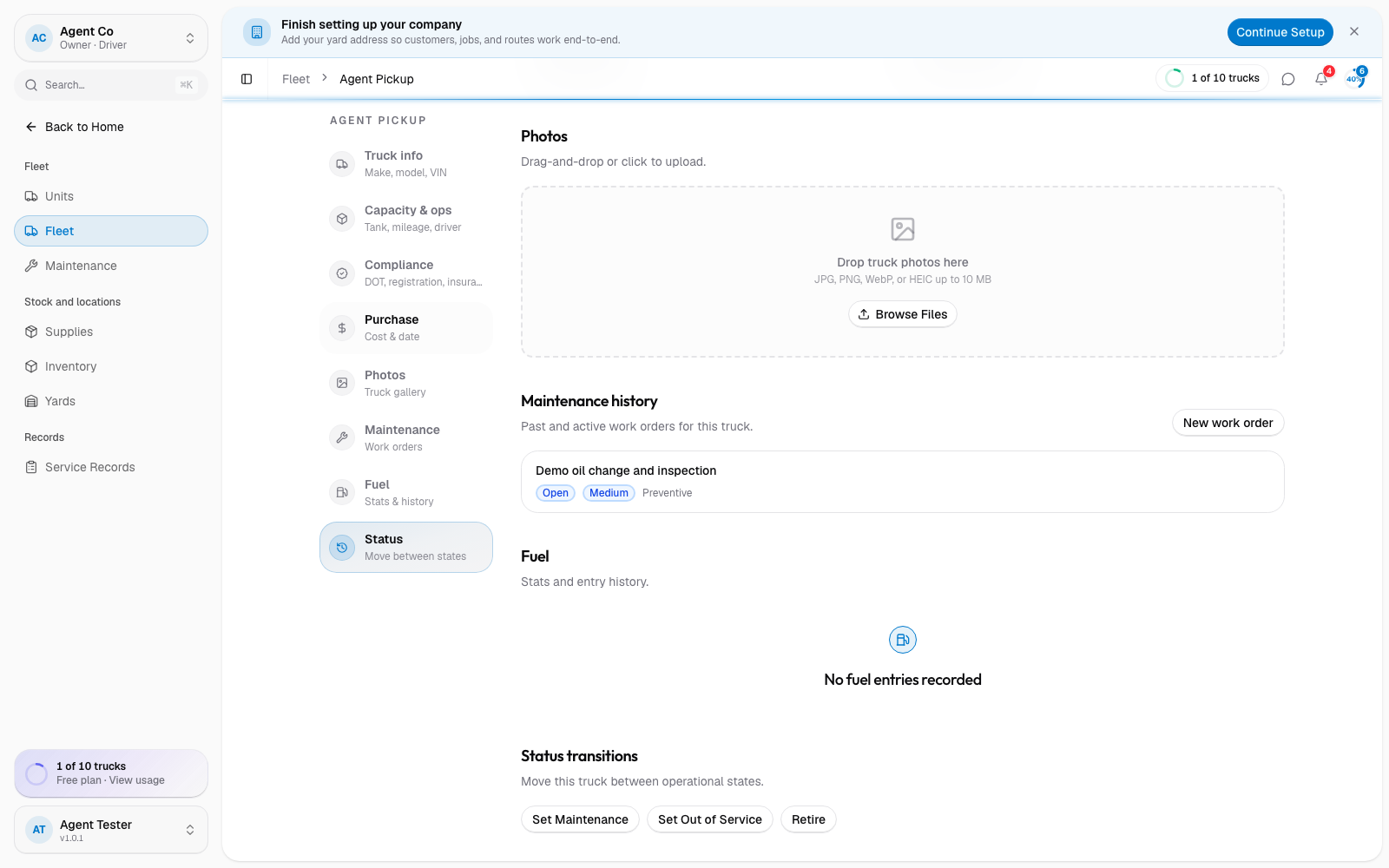
Select a vehicle to open it, then open the Status section to move it between states.
What you'll see
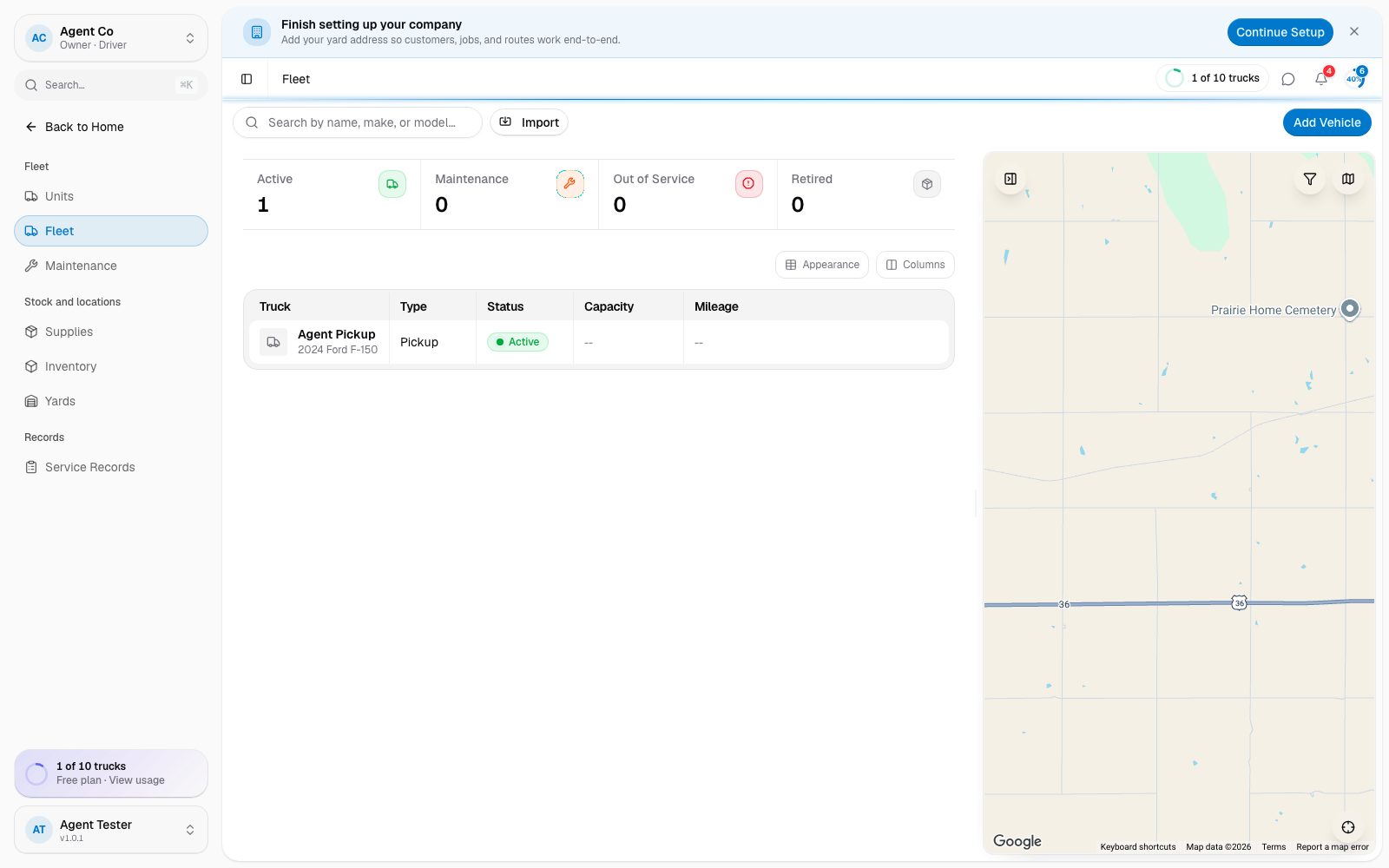
The Fleet list shows a status tile for each state, Active, Maintenance, Out of Service, and Retired, with a count. Selecting a tile filters the table to only that status; select it again to clear the filter. The table itself shows each vehicle's name, type, and status alongside a live map panel.
On a vehicle's page, the Status section lets you move it to a different state. Compliance windows for DOT inspection, registration, and insurance show as expiring or expired if they need attention, alongside the vehicle's maintenance history and fuel stats.
Moving a vehicle to Maintenance is also how work orders link to it. See Maintenance.
If something's not right
- I don't see a vehicle I expect: clear any active status filter, or check the search box for a typo.
- Status won't change: check your role has fleet write access under Roles and permissions.