Set up a cohort
Group customers and contacts into a reusable, named, colored audience.
A cohort is a saved group of customers, for example "Construction sites" or "Weekly residential." Use cohorts to filter lists and to address messages to several customers at once.
Go to Settings → Cohorts.
Select New cohort.
Add a Name. This is required.
Pick a Color so the cohort is easy to spot in lists.
Select Create cohort.
Adding customers to a cohort
Cohort membership is set from the customer's form, not from the cohort's own page or the customer's read view.
Open a customer for editing (or start a new one), and in the Cohorts section select Add cohorts (or Edit cohorts if it already has some).
In the Choose Cohorts sheet, check the cohorts this customer belongs to. You can also select New cohort from here if you need one that doesn't exist yet.
What you'll see
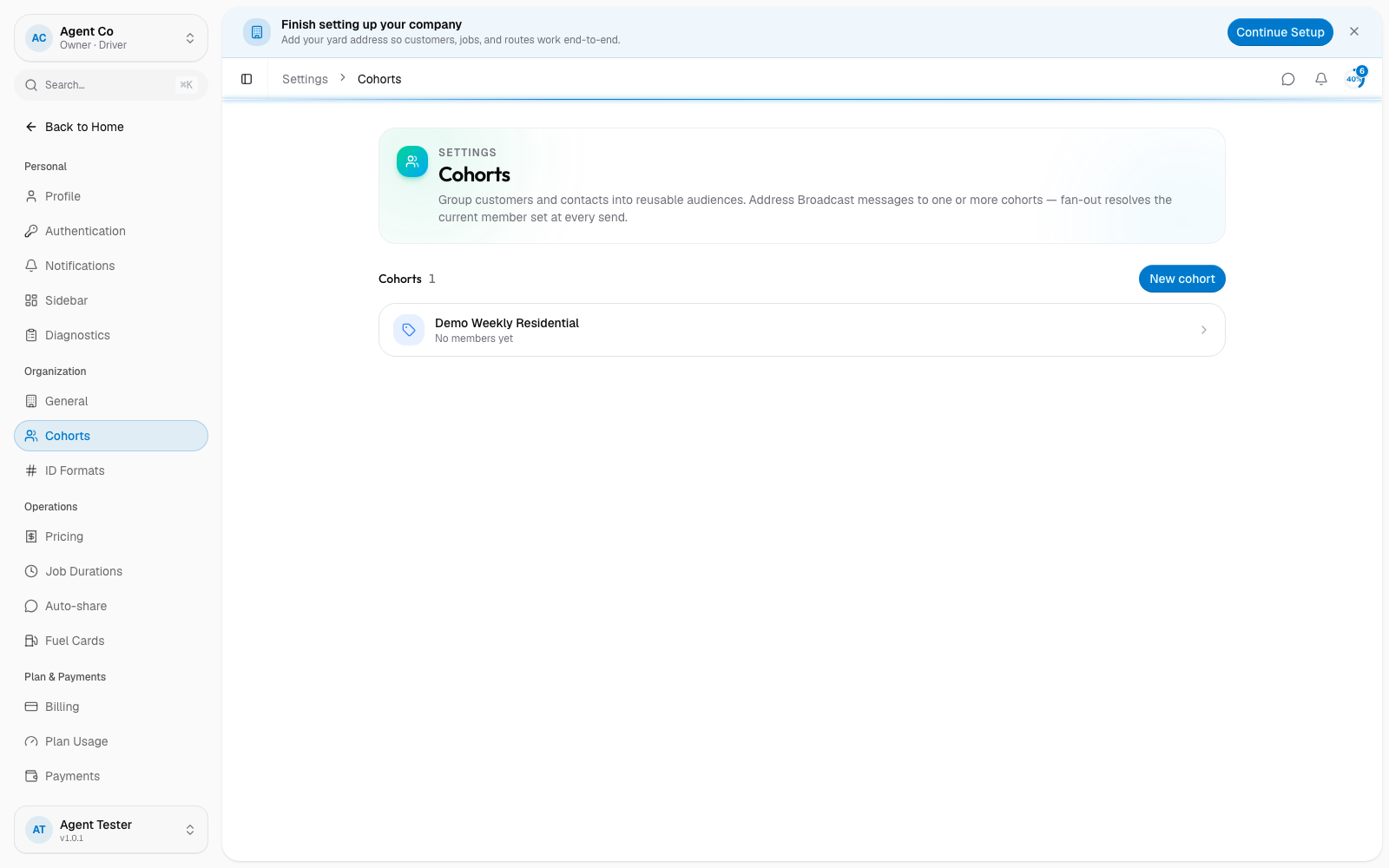
The Cohorts page in Settings shows every cohort you've created and a membership count. That count includes both customers and contacts in the cohort. Open a cohort to see its detail header, which counts customers only, or to rename it, change its color, or select Delete cohort.
Deleting a cohort removes it from every customer it's attached to. It doesn't delete the customers themselves.
If something's not right
- Can't find New cohort: it's under Settings → Cohorts, not on the Customers list.
- Customer missing from a cohort's count: reopen the customer for editing and check its Cohorts section to confirm it's actually a member.
- The list count and detail count don't match: that's expected. The Cohorts list count includes contact memberships; the cohort's detail header counts customers only.