Message many customers at once
Send the same message to a group of customers in one chat.
Pick a Cohort as the recipient to reach every customer in it at once, instead of picking people or teams, which message your own staff, not customers.
Go to Messages in the sidebar and select the new message icon.
Under Cohorts, select one or more saved cohorts.
Select Start chat.
What you'll see
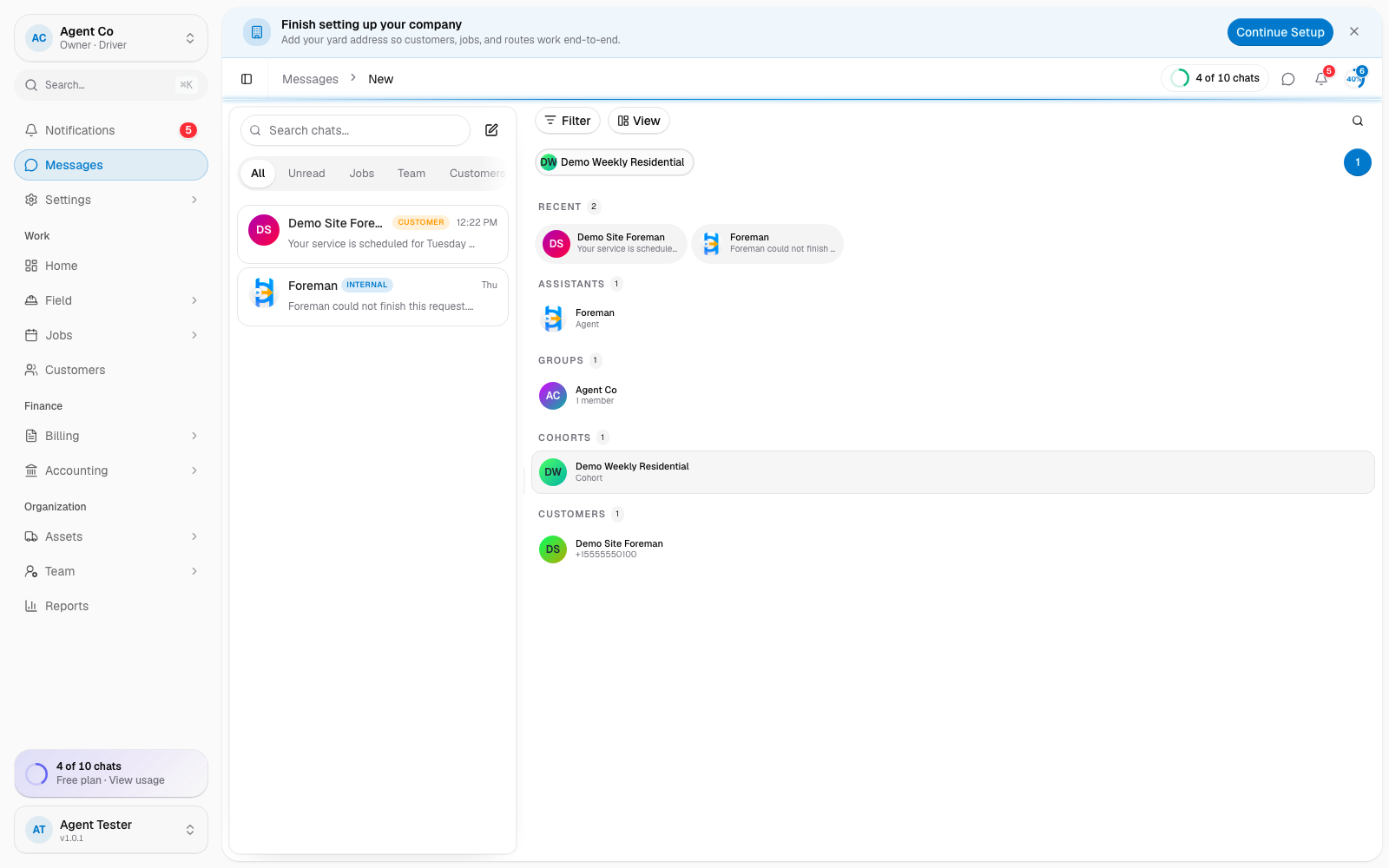
One conversation is created for the cohorts you picked. Each recipient gets their own text or email, and their replies come back into that same thread, so you see every customer's reply in one place without seeing other customers' replies.
To message every customer in your org, or to add an audience to a chat that's already running, open an existing customer chat, then go to chat info > Add audience. That's where the All Customers option lives; it isn't part of starting a new message.
If something's not right
- Don't see a cohort you expected: cohorts are managed under Settings → Cohorts. Check the customer is actually a member.
- Message went to the wrong customers: double-check your cohort selection before selecting Start chat.
- Can't find All Customers: it's only available from an existing chat's audience editor, not from New Message.