Start a conversation
Message a teammate, group, or customer from the Messages inbox.
Go to Messages in the sidebar.
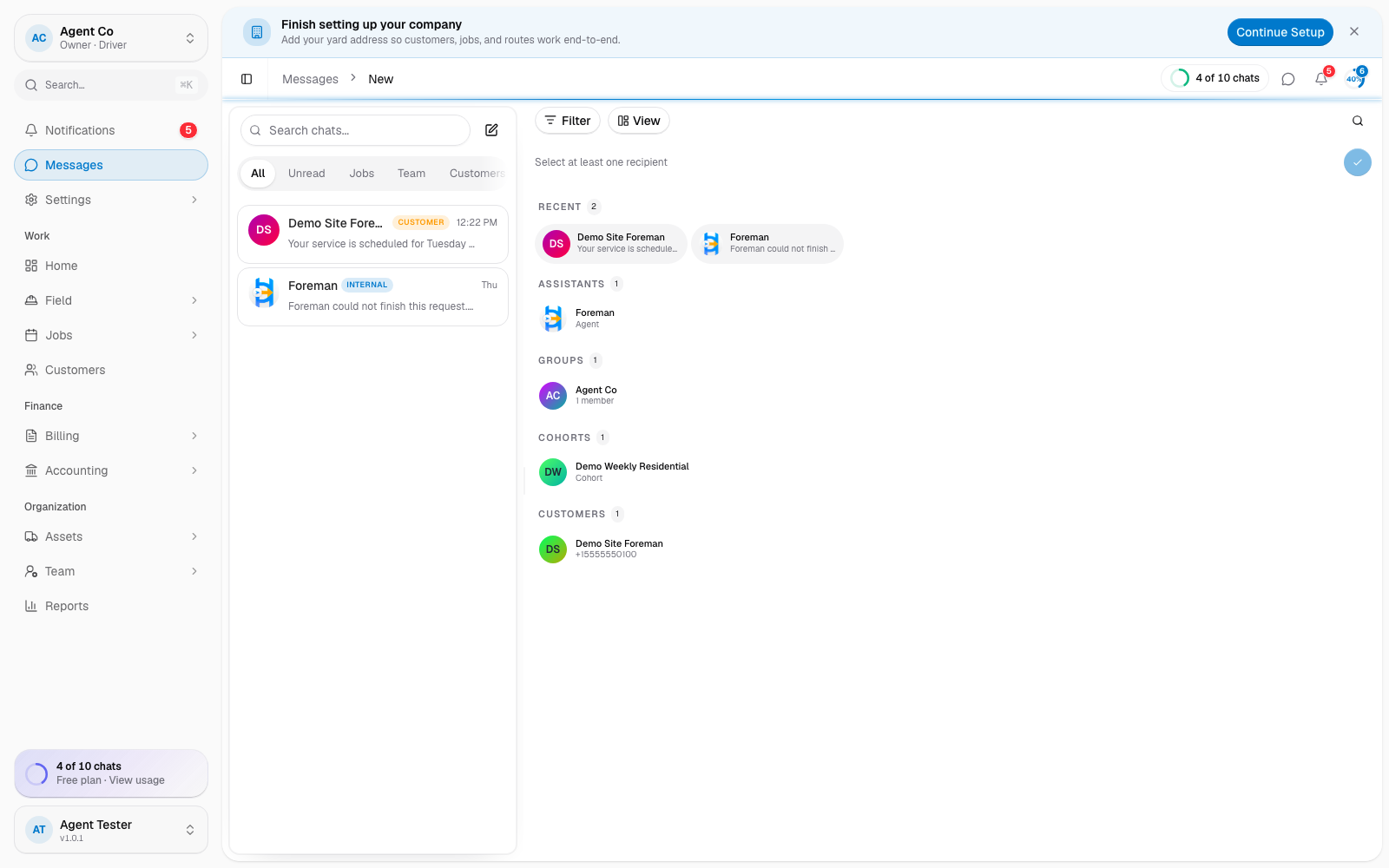
Select the round pencil New Message button. This opens the New Message compose popover.
Pick who to message. Internal options are Assistants, Groups, and People. Customer options are Cohorts and Customers.
Select Start chat next to the person, group, cohort, or customer you picked.
Type your message and select Send. Use Attach to add a file or photo.
What you'll see
For a customer conversation, DropHaul shows a channel toggle in the composer: SMS, Email, SMS + Email, or In-app. In-app is team only — the customer won't see that message, so pick it only for a note to yourself or a teammate inside the thread. Internal conversations (teammates, groups) are always in-app only. Once you send a message, it opens as a thread you can keep replying in.
If something's not right
- Can't find a customer to message: check that the customer has an email or phone on file. DropHaul needs at least one to send SMS or email.
- Message stuck on Send: check your connection; if you're offline, it sends once you're back online.
- Wrong channel used: reopen the composer and change the channel toggle before sending.