Check delivery status
See whether a message reached each recipient, and what happened after.
Open the conversation you want to check.
Open the message's details drawer.
Look at the Sent From and Delivered To sections.
What you'll see
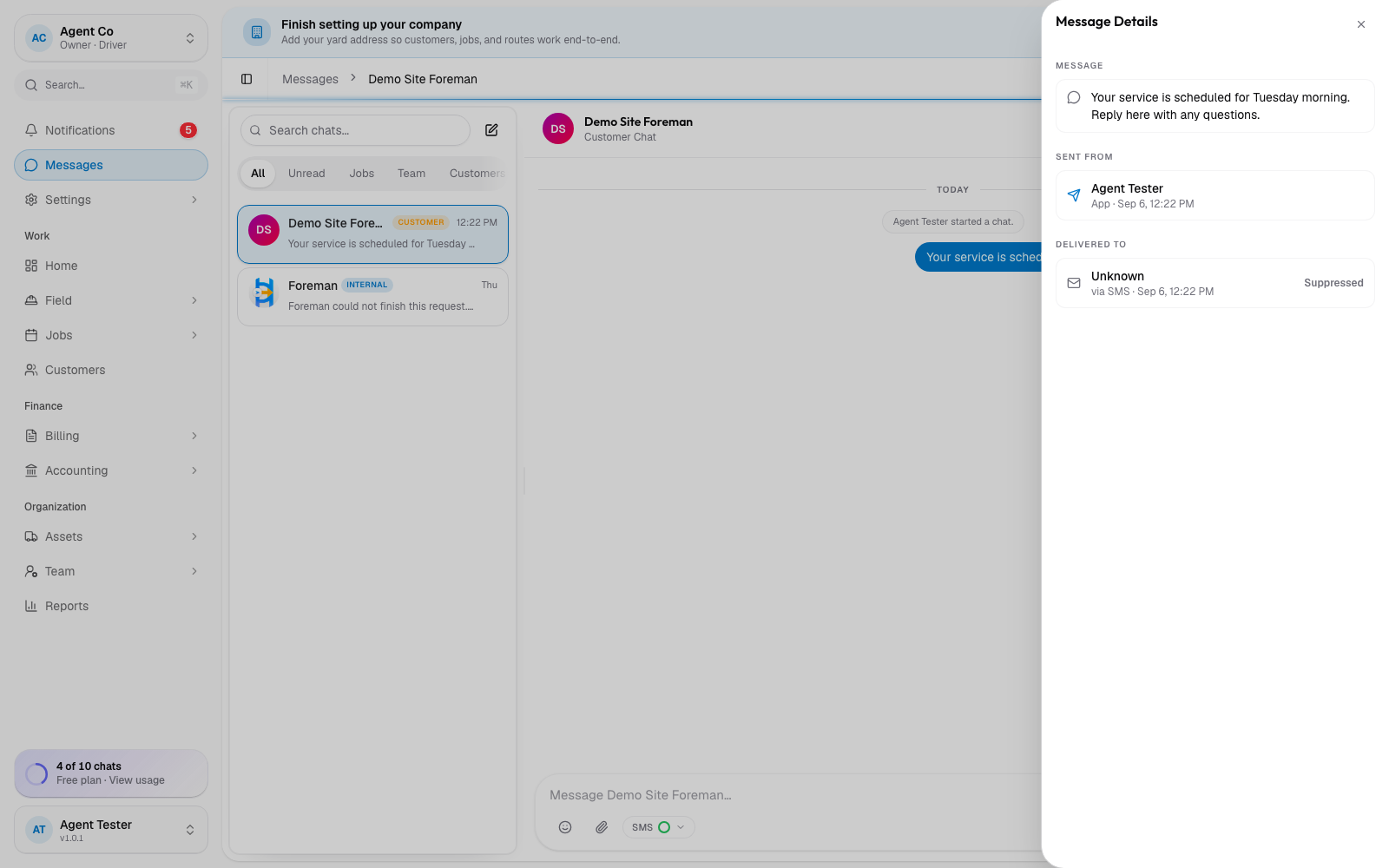
Each recipient row shows one status: pending, unknown, queued, sent, delivered, failed, bounced, opened, clicked, complained, or suppressed. A row shows which channel it went out on: in-app, SMS, email, or push.
- Delivered or opened means it reached the customer.
- Failed or bounced means the message didn't get through, usually a bad number or address.
- Unknown means DropHaul lost track of the provider's status; it isn't a failure on its own.
- Suppressed means that channel was turned off for this contact (see Stop messaging a specific customer), so DropHaul skipped it.
- Complained means the customer marked an email as spam. DropHaul records this status but does not currently stop future emails to them automatically.
If something's not right
- Status stuck on pending or queued: this usually clears within a few minutes. If it doesn't, check your connection or try resending.
- Status shows failed or bounced: double check the customer's phone number or email address on their customer record.
- Status shows suppressed and you didn't expect it: check whether someone turned that channel off for this contact; see Stop messaging a specific customer.