Read your owner dashboard
The daily overview owners, admins, and dispatchers see when they sign in.
Go to Overview in the sidebar. This is the page you land on after signing in.
Use New Job to open the jobs list, or Dispatch in the header to jump straight into scheduling work.
What you'll see
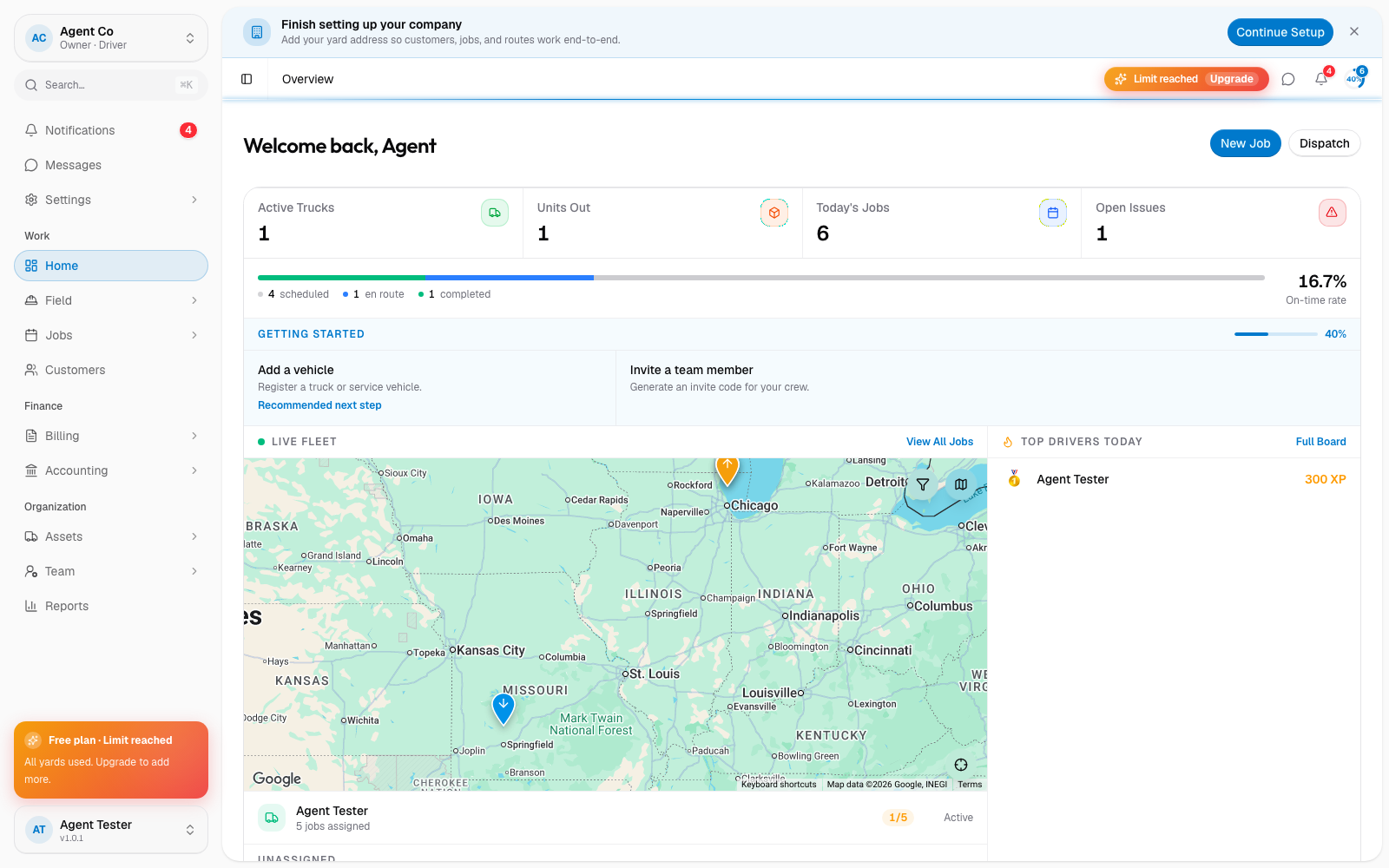
The page greets you by name and shows a stat row: Active Trucks, Units Out, Today's Jobs, and Open Issues.
Below that, an exceptions region flags urgent or overdue jobs, and a dispatch efficiency bar compares completed jobs to your total for the day. If you're still finishing setup, an onboarding card walks you through what's left.
The main grid shows your live fleet on a map alongside a Top Drivers Today leaderboard. Owners also see a QuickBooks health card here, covering your accounting connection at a glance.
Drivers and technicians without dispatch access see a simpler driver-focused overview instead of this page.
If something's not right
- My stats look stuck: refresh the page. The dashboard reads live data, but a slow connection can delay the first load.
- QuickBooks card is missing: it only shows for owners, and only once QuickBooks is connected. See QuickBooks financial reports.