Export a report
Download a report as a CSV or PDF file.
Open the report you want from Reports, and pick the period you need.
Select Export CSV to download the table as a spreadsheet file, or Export PDF for a formatted document.
What you'll see
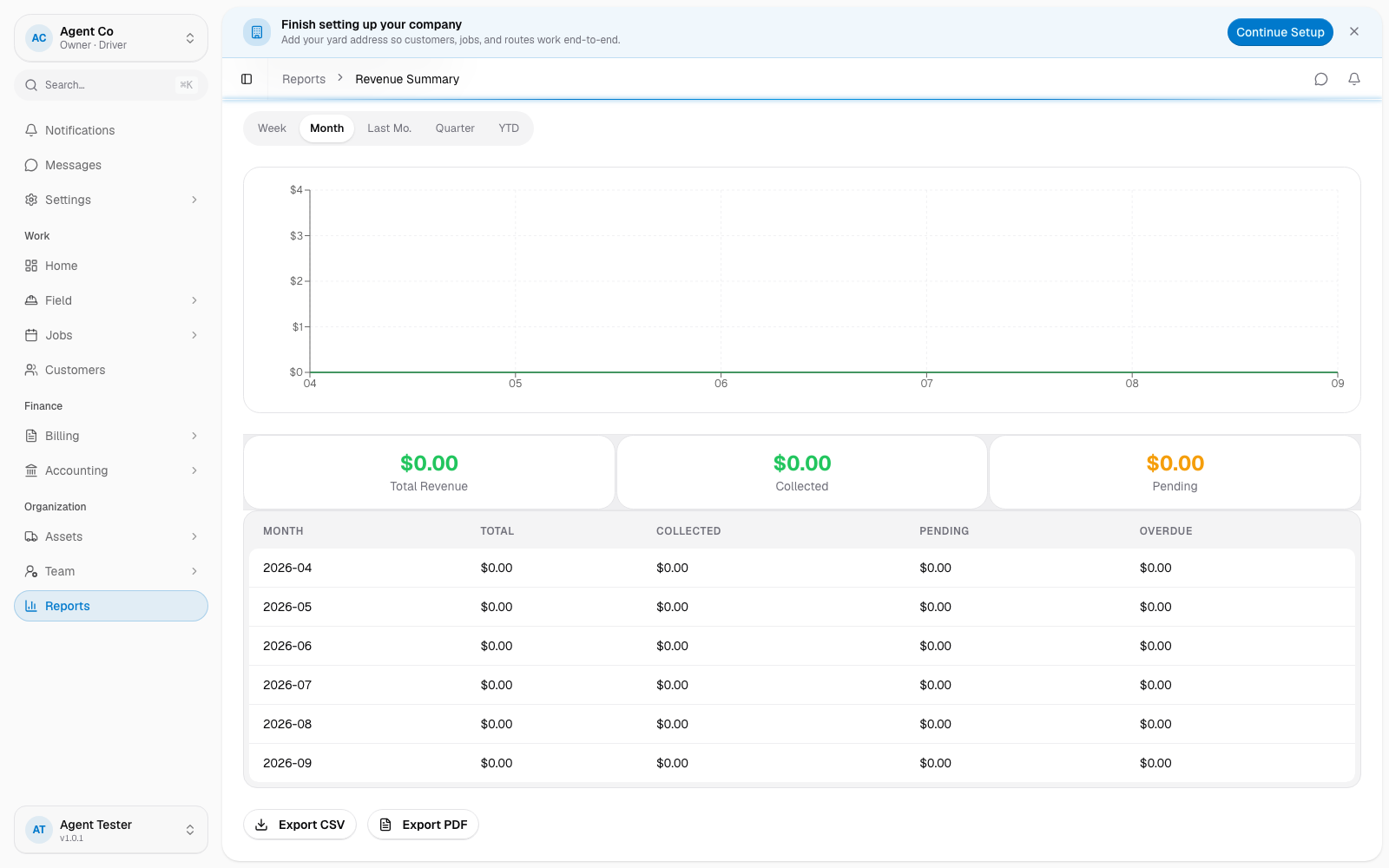
The CSV downloads right away, named after the report and period, for example
revenueSummary-this_month.csv. A PDF shows "Generating..." while it
builds, then downloads once it's ready.
PDF export is only available for some reports: Revenue Summary, AR Aging, Payment Collection, Job Summary, Route Efficiency, Unit Utilization, Unit Inventory, Driver Performance, Customer Summary, and Fleet Status. Every report supports CSV.
If something's not right
- Export PDF does nothing: the button always shows, but for reports that don't support PDF, clicking it doesn't produce a file. Use Export CSV instead.
- PDF is stuck on Generating: give it a moment for larger date ranges, then try a shorter period if it doesn't finish.
- Export happened while offline: report export is a web-app feature and needs a connection.