Track your supply inventory
See what supplies you have, filter by category or stock level, and check the total value.
On the web, go to Supplies in the sidebar. On iOS, open the Supplies tab.
Use the filters to narrow the list by category (chemical, paper, hygiene, cleaning, safety, parts, or other), or select the Low Stock Alerts tile to show only items at or below their minimum stock. Select it again to clear that filter.
Select an item to see its detail: current stock, minimum stock, reorder quantity, cost per unit, supplier, SKU, and its full transaction history.
What you'll see
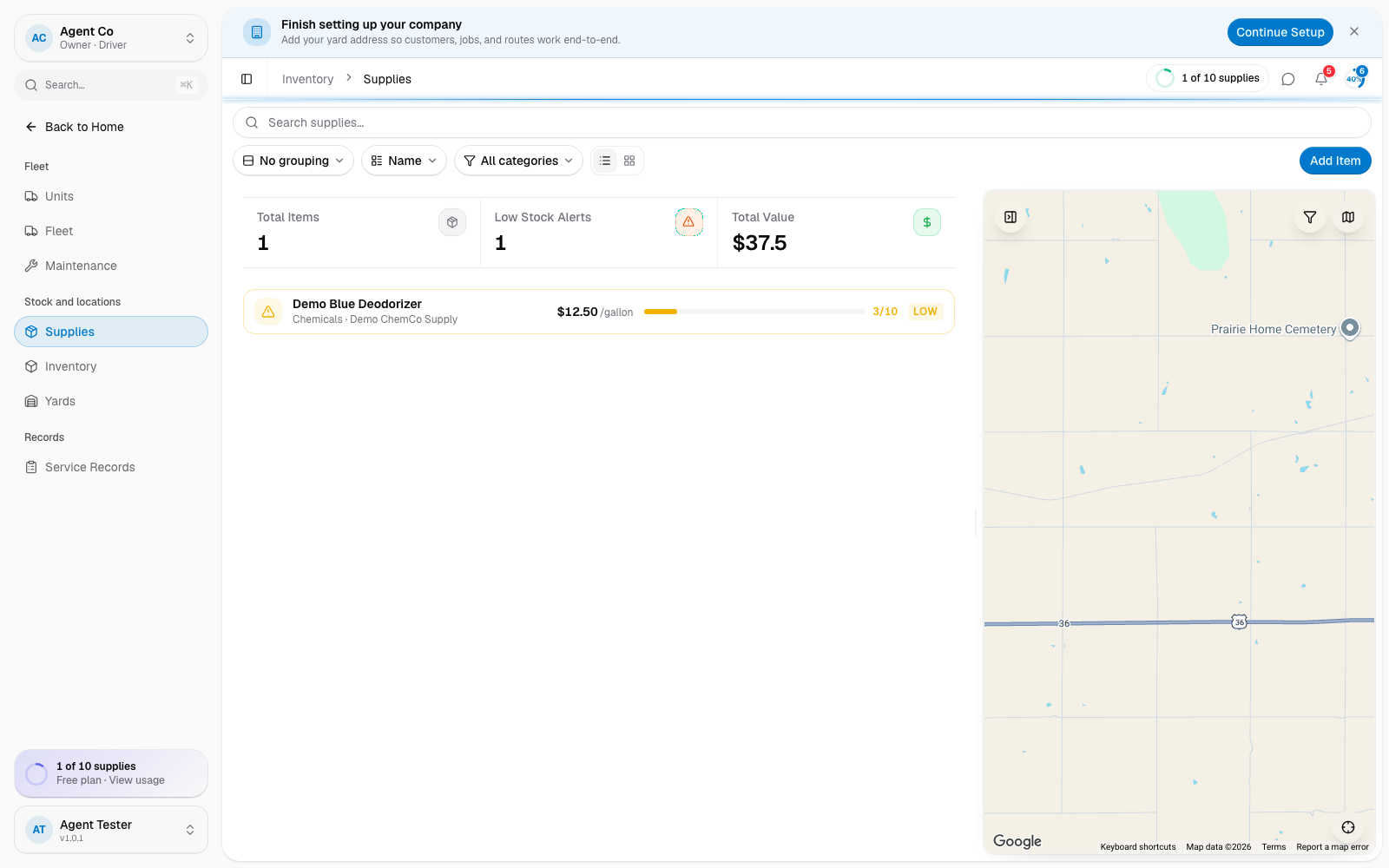
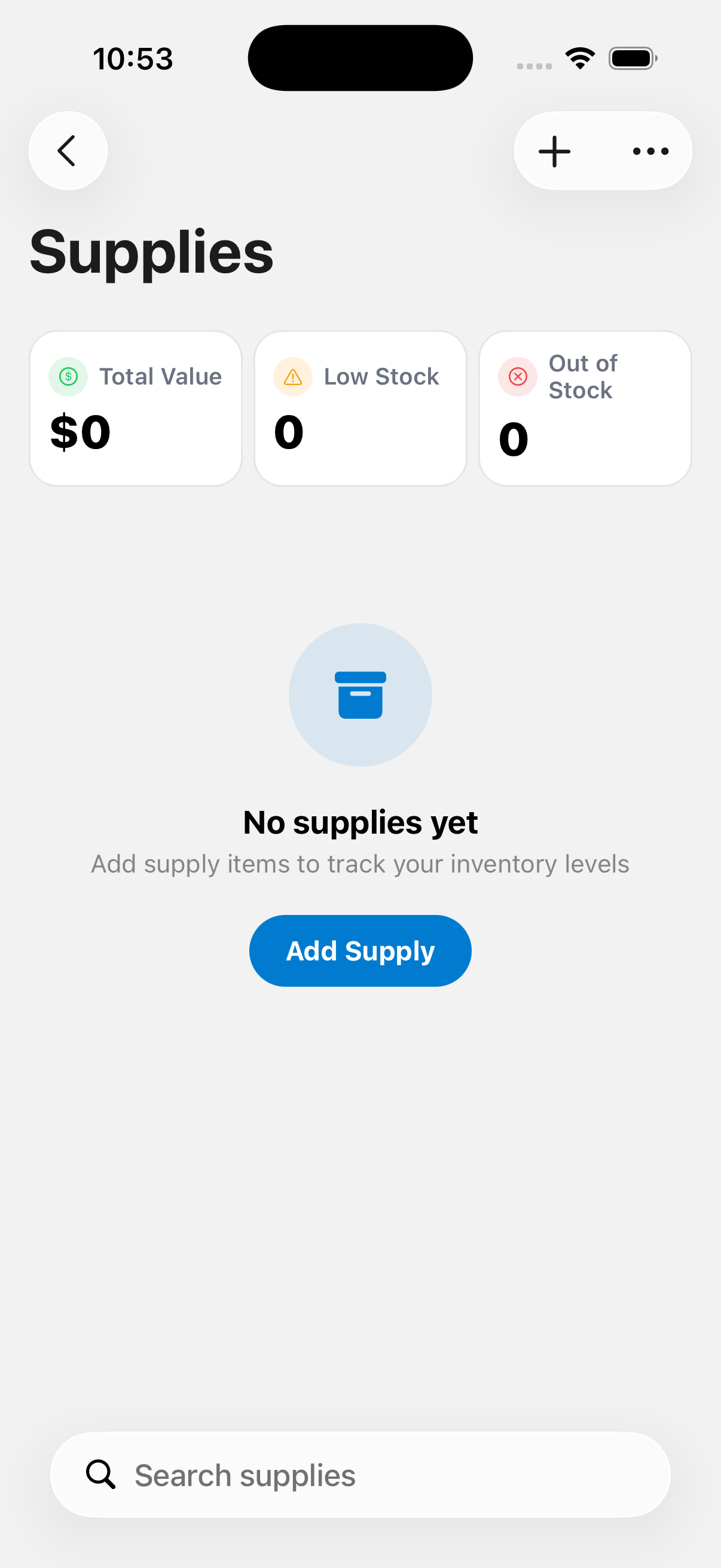
On the web, the list shows stat tiles for Total Items, how many are low on stock, and Total Inventory Value. You can create and edit supply items on the web. An item's detail page shows every purchase, usage, adjustment, and waste transaction that affected its count, but logging a new transaction is iOS-only.
On iOS, the same list supports search, grouping by category, filtering by supplier, and multi-select for bulk actions.
If something's not right
- An item's stock looks wrong: check its transaction history for the last recorded change. See Log usage, restock, and adjust.
- I can't log usage from the web: logging usage, restocks, and adjustments is iOS-only today. On the web you can view, create, and edit items, but not log transactions against them.