Log usage, restock, and adjust stock
Record what your crew used, what you ordered, and correct a stock count, from the iOS app.
Before you start
Logging usage, restocks, and adjustments only works in the iOS app. The web app shows the same items and history, but you can't log a transaction from there. This flow is available to dispatchers and technicians. Drivers don't have a Supplies tab in the driver app.
In the Supplies tab, open the item you want to update, or select several items and use the multi-select toolbar to update them together.
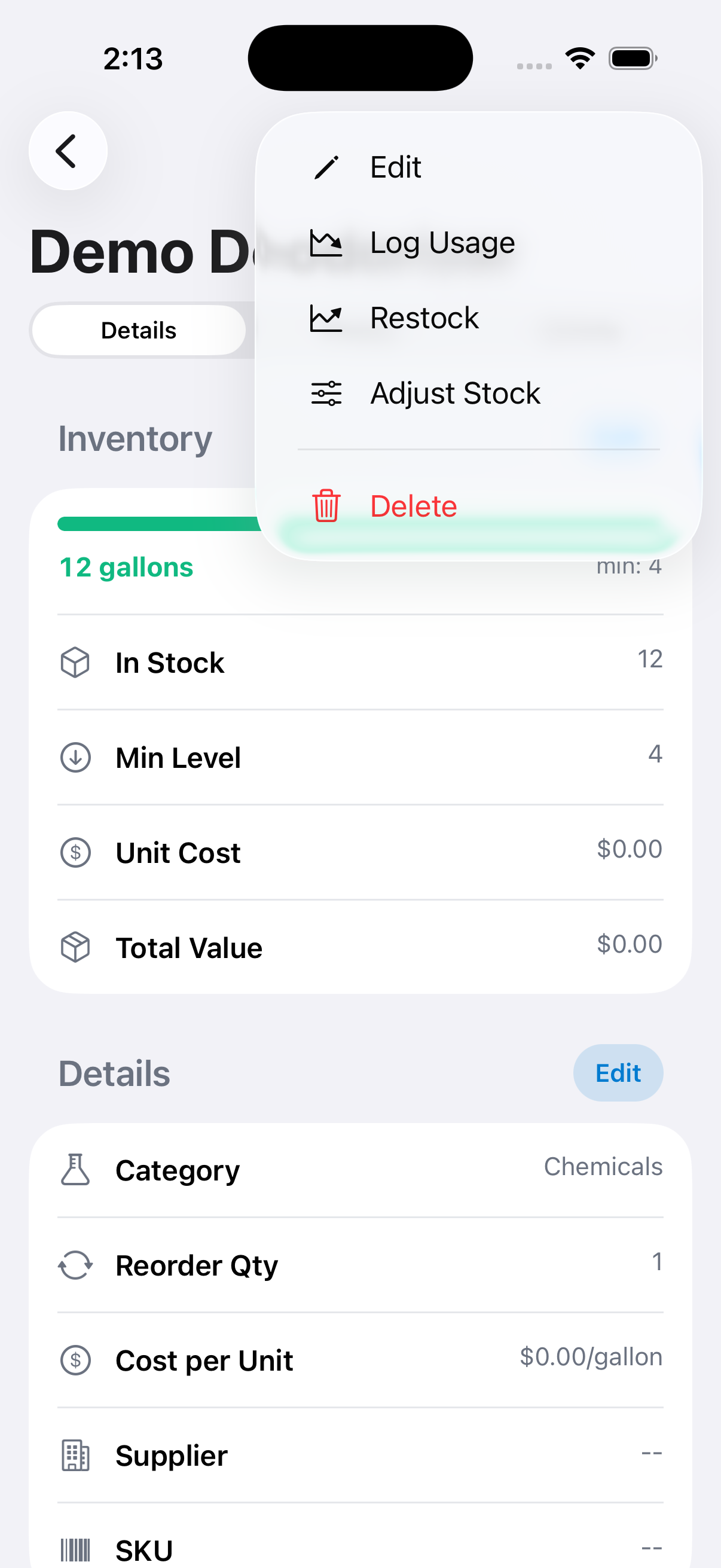
Tap ... on the item, then choose Log Usage, Restock, or Adjust Stock.
For Log Usage, enter the Amount (unit) used and an optional note. For Restock, enter the quantity, cost per unit (prefilled from the item), and a note, DropHaul shows the projected total cost. For Adjust Stock, enter either a New Count or a Delta (+/−).
Select Log Usage, Add to Stock, or Save Adjustment, whichever matches the action you started. The item's current stock and transaction history update right away.
What you'll see
If logging usage would take an item below zero, DropHaul warns you: logging that amount would leave the count negative, and asks if you want to proceed anyway.
Selecting multiple items opens a bulk version of the same three actions, so you can restock or adjust a whole category at once instead of item by item.
If something's not right
- Insufficient Stock warning: you can still proceed if the shortage is expected (for example, you're logging usage before a restock arrives). Otherwise, cancel and check the count first.
- I need to log this from the web: that's not supported yet. Use the iOS app, or ask a teammate who has it.