Optimize a route
Let DropHaul reorder a route's stops for the shortest drive.
Before you start
The route needs at least two jobs on it. Optimizing spends credits: Standard costs 1 credit and Premium costs 3 credits per route. Your plan gives you a monthly credit allowance, shown in the dialog when you optimize.
Open Routes and find the route.
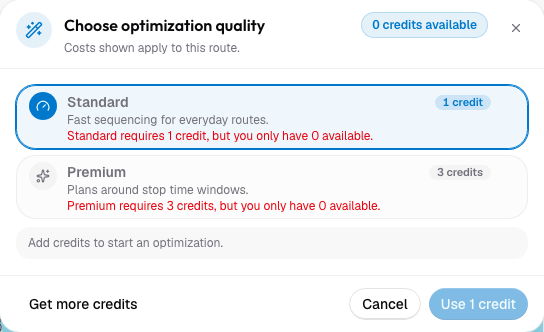
Select Optimize. This opens the Choose optimization quality dialog.
Pick Standard or Premium. Standard sequences stops for the shortest drive. Premium also plans around stop time windows, service-time estimates, and the driver's shift and break schedule; see what road-aware means for what each tier covers.
Select the confirm button. It reads Use N credits, with the actual number filled in, or Optimize route if your plan has unlimited credits.
What you'll see
The button reads Optimizing… while DropHaul works out the best order, then the route shows Optimized once it's done. The stops are reordered on the route to minimize drive time between them.
Adding or removing a job from an already-optimized route doesn't automatically re-sequence it. Select Optimize again to account for the change.
If something's not right
- Optimize is disabled: the route needs at least two jobs.
- Optimize failed: the button switches to Retry. Try again, and check that every job on the route has a valid site address.
- Standard or Premium is grayed out in the dialog: you don't have enough credits for that tier. The dialog shows how many you'd need; select Get more credits to add some.
- Premium says "Temporarily unavailable": your deployment isn't configured for Premium optimization yet. Use Standard, or contact DropHaul.